
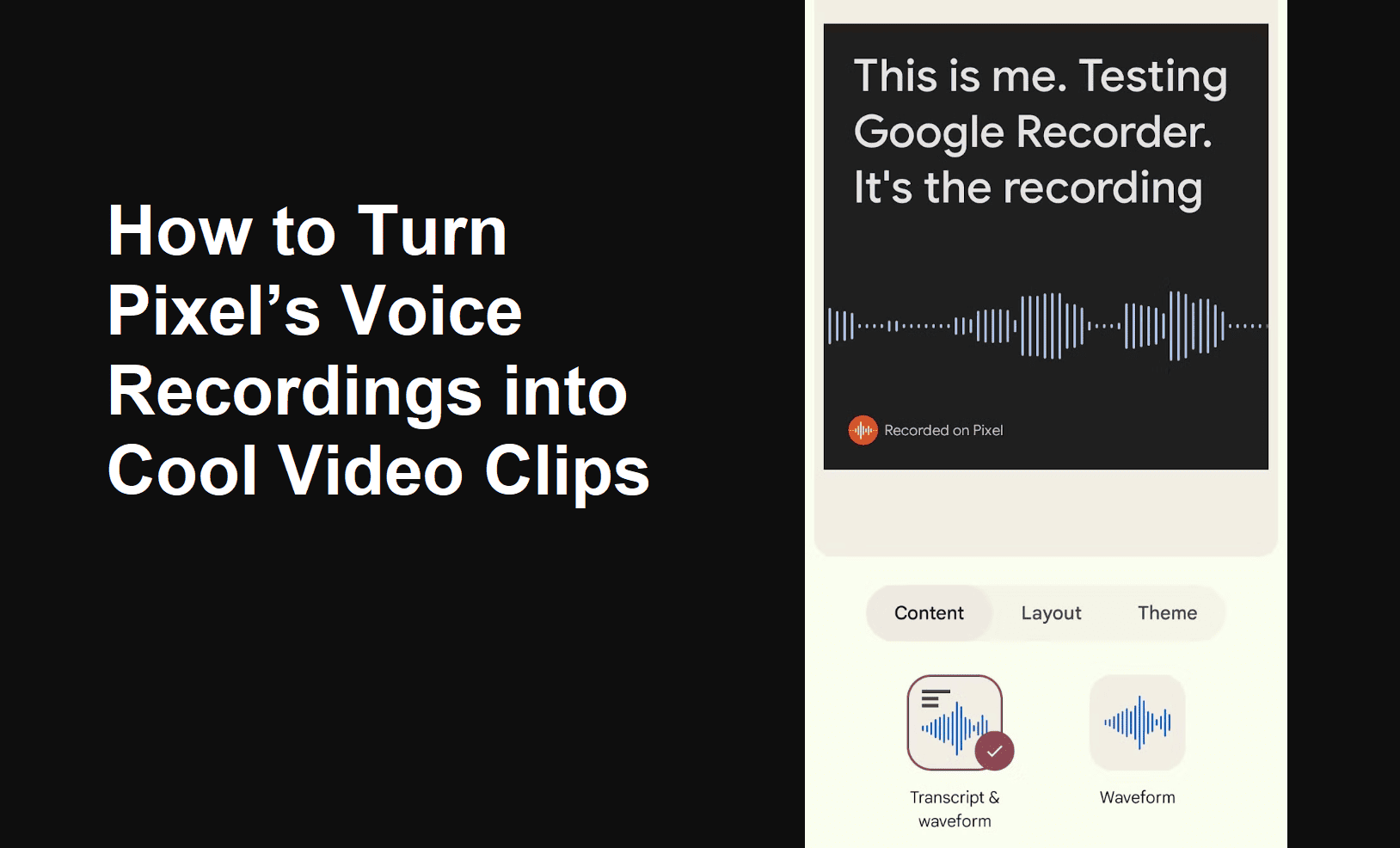
Have you ever wanted to turn your Google Pixel’s voice recordings into something more dynamic? Whether it’s a lecture, a brainstorming session, or a personal memo, what if you could bring those voice notes to life in the form of a video? With the power of Pixel’s Recorder app, you can easily create engaging video clips that feature your voice synced with on-screen text. It’s a simple yet effective way to share your thoughts, ideas, or stories in a more creative and shareable format. In this guide, we’ll walk you through the steps to turn your voice recordings into professional-looking video clips in just a few taps!
How to Create a Video Clip from Google Pixel’s Voice Recording Notes?
Step 1: Record Your Voice Note
- Open the Recorder App: It’s pre-installed on most Pixel phones. If not, grab it from the Play Store.
- Tap Record: Hit that big red Record button and start talking. Your words will magically appear as text while you speak.
- Stop Recording: When you’re done, tap the Stop button. That’s it — your voice note is ready!
Step 2: Edit the Text (If Needed)
- Review the Transcript: After recording, the app shows your words in text form.
- Fix Any Typos: Tap and edit any mistakes — you want your clip to be on point!
Step 3: Create the Video Clip
- Pick the Recording: Open the recording you want to turn into a video.
- Tap the Share Icon: It looks like three connected dots or an arrow.
- Choose Create Video Clip: Boom! You’re almost there.
- Customize It:
- Select Specific Text: Highlight just the parts you want in the video.
- Pick a Style: Choose dark mode, light mode, or even colored backgrounds to match your vibe.
Step 4: Save and Share
- Preview First: Make sure the video looks how you want.
- Save It: Tap Save or Export — your video will be in the Photos app.
- Show It Off: Share it on Instagram, TikTok, or wherever you like!
Why Use This Feature?
- Eye-Catching Content: Your words come to life with text and visuals.
- Accessible for All: Text makes your content understandable even without sound.
- Versatility: Great for podcasts, tutorials, stories, or sharing important messages.
Final Thoughts
Turning Pixel’s voice recordings into video clips is like having a personal content studio in your pocket. It’s simple, fun, and incredibly useful. Ready to try it out? Hit that record button and let your words shine!
Also Read: