
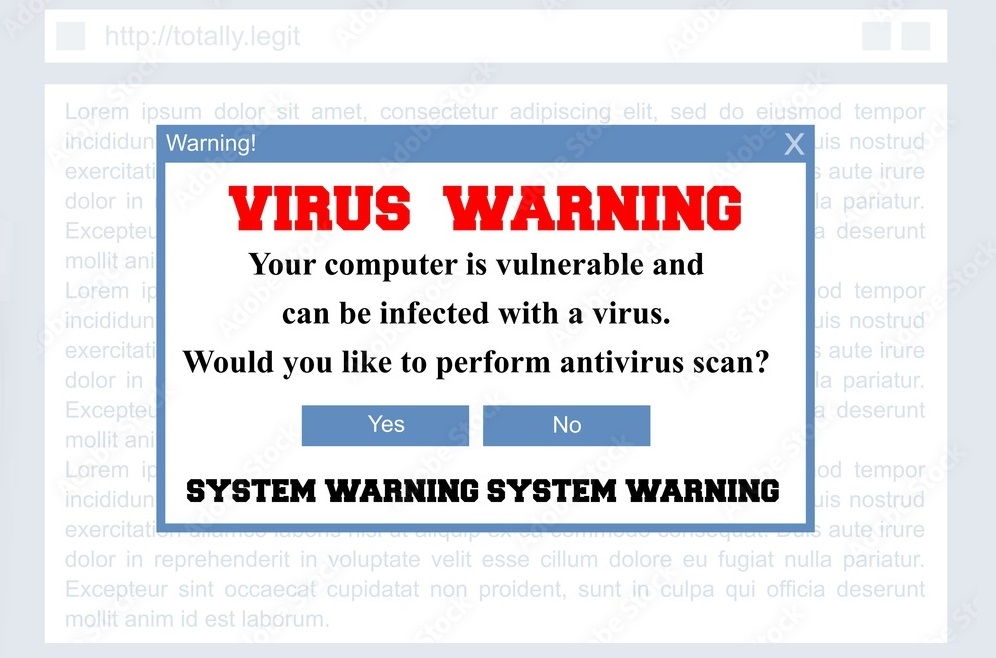
What is a Fake Virus ?
A “fake virus” typically refers to a type of malicious software, often referred to as malware, that pretends to be a legitimate virus or antivirus program. These programs often display alarming messages claiming that your computer is infected with viruses or other malware, and prompt you to download or purchase their software to remove the supposed threats. However, in reality, these fake antivirus programs are themselves the malicious software, designed to trick users into paying for useless or even harmful services, or to steal personal information.
Sometimes, the term “fake virus” might also refer to harmless pranks or simulations created for entertainment purposes, which mimic the behavior of viruses but don’t actually cause any harm to the computer system. These can be used for educational purposes or to play harmless tricks on friends, as long as they’re used responsibly and ethically.
Signs of Fake Viruses
Here are some signs that may indicate the presence of a fake virus or fake antivirus program on your computer:
- Unsolicited pop-up messages: Fake viruses often display alarming pop-up messages. Claiming that your computer is infected with viruses or other malware, even if you haven’t run a virus scan.
- Scare tactics: These pop-up messages may use scare tactics to prompt you into taking immediate action. Such as claiming that your personal data is at risk or that your computer will be damaged if you don’t download their software.
- Requests for payment or personal information: Fake antivirus programs typically prompt you to download or purchase their software to remove the supposed threats. They may ask for payment or request personal information such as credit card details.
- Poorly designed interfaces: Fake antivirus programs often have poorly designed or amateurish interfaces. That may look unprofessional or inconsistent with legitimate antivirus software.
- No reputable sources: If you’re prompted to download antivirus software from a website you’ve never heard of. Or if the software is not from a reputable antivirus vendor, it’s likely a fake virus or fake antivirus program.
- Unexpected installations: If you notice unfamiliar software installed on your computer without your consent, especially if it claims to be antivirus software, it may be fake.
- Performance issues or strange behavior: Fake antivirus programs may cause your computer to slow down, crash, or exhibit other unusual behavior due to their malicious activities.
How to Remove Fake Virus Pop-ups ?
To remove fake virus warning pop-ups from your computer, you can follow these steps:
- Close the Pop-up Window: If a fake virus pop-up appears on your screen, try closing the window by clicking on the “X” button or pressing the “Close” key combination (such as Alt + F4 on Windows or Command + W on macOS). Avoid clicking on any buttons or links within the pop-up, as they may trigger further malicious actions.
- Use Task Manager (Windows) or Force Quit (macOS): If the pop-up won’t close normally, you can use the Task Manager in Windows or Force Quit on macOS to end the process associated with the pop-up. Press Ctrl + Shift + Esc on Windows or Option + Command + Esc on macOS to open Task Manager or Force Quit, respectively, then locate the suspicious process and end it.
- Run a Full Antivirus Scan: Use a reputable antivirus program to scan your computer for any actual malware or malicious software. Make sure your antivirus software is up to date and perform a full system scan to detect and remove any threats.
- Clear Browser Cache and Cookies: If the fake virus pop-ups appear only when browsing the internet. Try clearing your browser’s cache and cookies. This can help remove any stored data that might be causing the pop-ups to appear repeatedly.
- Reset Browser Settings: If clearing the cache and cookies doesn’t solve the problem. Consider resetting your web browser to its default settings. This will remove any unwanted extensions or changes made by malicious software.
- Check for Unwanted Programs: Sometimes, fake virus pop-ups are caused by unwanted or malicious programs installed on your computer. Use the control panel or system settings to uninstall any unfamiliar or suspicious programs.
- Update Your Operating System and Software: Ensure that your operating system and all installed software are up to date with the latest security patches and updates. This helps protect your computer from known vulnerabilities that could be exploited by malware.
- Be Cautious Online: Avoid clicking on suspicious links or downloading files from unknown sources. Be cautious of pop-ups or messages claiming your computer is infected. And urging you to download software, as they may be attempts to distribute malware.
If you’re unable to remove the fake virus pop-ups using these steps, or if you suspect that your computer is still infect with malware. Consider seeking assistance from a professional computer technician or IT support specialist.
How to Prevent Fake Viruses ?
Preventing fake viruses involves a combination of cautious online behavior and implementing security measures on your devices. Here are some steps you can take to prevent fake viruses:
- Use Reputable Antivirus Software: Install and regularly update reputable antivirus software on all your devices. This software can detect and remove fake viruses as well as legitimate malware threats.
- Keep Software Updated: Ensure that your operating system, web browsers, and all installed software are up to date with the latest security patches and updates. Many fake viruses exploit known vulnerabilities in outdated software.
- Be Cautious of Pop-up Messages: Be skeptical of unsolicited pop-up messages claiming that your computer is infect with viruses or other malware. Avoid clicking on any links or buttons within these pop-ups, as they may lead to further infection.
- Avoid Suspicious Websites: Exercise caution when visiting unfamiliar or suspicious websites, especially those that offer free downloads or pirated software. These websites may host fake viruses or other malware.
- Be Skeptical of Email Attachments and Links: Avoid opening email attachments or clicking on links from unknown or suspicious senders. Fake viruses are often distributed via phishing emails that mimic legitimate communications from trusted sources.
- Enable Pop-up Blockers: Use browser settings or extensions to enable pop-up blockers. Which can help prevent fake virus pop-ups from appearing while you’re browsing the internet.
- Educate Yourself and Others: Stay informed about common cybersecurity threats and scams. And educate yourself and others about how to recognize and avoid them. Share knowledge and best practices with friends, family, and colleagues to help protect them from fake viruses.
- Verify Downloads and Updates: Only download software and updates from trusted sources, such as official websites or app stores. Be cautious of downloading software from third-party sources, as it may contain fake viruses or other malware.
- Enable Security Features: Enable security features such as firewall protection and secure browsing settings on your devices. To provide an additional layer of defense against fake viruses and other threats.
- Regularly Backup Your Data: Regularly backup your important files and data to an external storage device or cloud service. In the event of a fake virus infection or other malware attack. You can restore your data from backup without paying ransom or risking data loss.
Examples of Fake Viruses
Fake viruses can take various forms, but they generally fall into two categories: malicious software designed to deceive users into believing their computer is infected, and harmless pranks or simulations created for entertainment purposes. Here are examples of each:
1) Malicious Fake Viruses:
- Fake Antivirus Scams: Programs that mimic legitimate antivirus software but actually infect your computer with malware or attempt. To extort money from you by claiming your system is infect and offering a paid solution.
- Ransomware Simulations: Malicious programs that simulate ransomware attacks, displaying fake ransom notes claiming that your files are encrypt and demanding payment to decrypt them. Even though no actual encryption has taken place.
- Tech Support Scams: Websites or pop-up messages that claim to be from tech support representatives warning you of viruses on your computer and offering to help remove them. Often by gaining remote access to your system and installing actual malware.
2) Harmless Pranks or Simulations:
- Fake Virus Pranks: Harmless programs or scripts that simulate virus behavior, such as displaying fake error messages, opening and closing windows rapidly, or causing harmless visual effects, intended for entertainment or prank purposes.
- Screensaver Pranks: Screensavers that simulate a virus infection by displaying fake system crashes, error messages, or other alarming visuals when activated. Typically used to prank friends or colleagues.
- Online Simulators: Websites or applications that allow users to simulate virus infections or antivirus scans in a controlled environment for educational or entertainment purposes, without causing any harm to the user’s computer.
FAQ’s
How do fake viruses infect computers?
Fake viruses typically infect computers through various means, including phishing emails, malicious websites, or bundled with pirated software downloads. They may also trick users into voluntarily installing fake antivirus software or other malicious programs.
How can I spot fake viruses?
You can spot fake viruses by being cautious of unsolicited pop-up messages, avoiding scare tactics, verifying sources before downloading software or updates. Using reputable antivirus software, staying informed about common cybersecurity threats, and trusting your instincts.
What should I do if I encounter a fake virus?
If you encounter a fake virus, remain calm and avoid clicking on any links or buttons within the pop-up message. Close the pop-up window if possible, run a full antivirus scan on your computer. And follow the steps to remove the fake virus pop-ups provided by your antivirus software.
What should I do if I see a fake virus alert?
If you see a fake virus alert, remain calm, close the pop-up window, avoid interacting with it. And run a full antivirus scan to ensure your system’s security.
Also Read :