
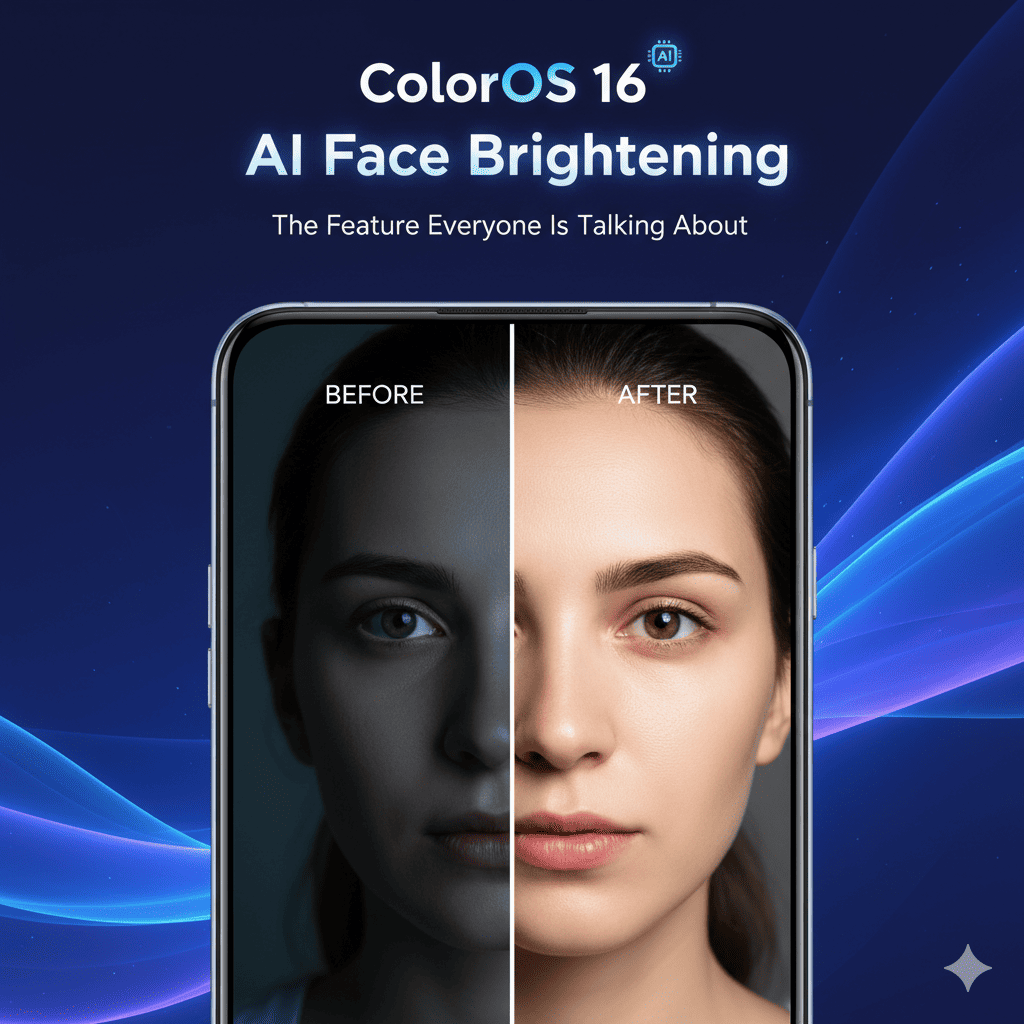
In the ever-evolving world of smartphone photography, OPPO has once again raised the bar with ColorOS 16 AI Face Brightening—a revolutionary feature that’s transforming how we capture memories. This groundbreaking technology has become the talk of the tech community, and for good reason. It’s not just another filter; it’s an intelligent system that understands light, recognizes faces, and delivers stunning results that look natural and professional.
Whether you’re a selfie enthusiast, content creator, or someone who simply wants better photos, ColorOS 16 AI Face Brightening is about to change your photography game. This comprehensive guide explores everything you need to know about this incredible feature, from how it works to maximizing its potential.
What Is ColorOS 16 AI Face Brightening?
ColorOS 16 AI Face Brightening is OPPO’s latest artificial intelligence-powered camera enhancement that automatically detects and optimizes facial brightness in photos and videos. Unlike traditional brightening filters that simply increase exposure across the entire image, this sophisticated AI system intelligently analyzes each face in the frame and applies targeted adjustments.
The technology uses advanced machine learning algorithms trained on millions of facial images to understand:
- Lighting conditions: Whether you’re in bright sunlight, dim indoor lighting, or challenging backlit situations
- Facial features: Recognizing different skin tones, facial structures, and individual characteristics
- Scene context: Understanding the overall environment to apply appropriate adjustments
- Natural aesthetics: Maintaining realistic skin textures while enhancing brightness
The result? Photos where faces are perfectly illuminated without looking artificial, overexposed, or disconnected from the background. This is the magic of ColorOS 16 AI Face Brightening.
1. How ColorOS 16 AI Face Brightening Works Behind the Scenes
The AI Neural Engine
At the heart of ColorOS 16 AI Face Brightening lies a powerful neural processing unit that performs real-time facial analysis. The system works through several sophisticated steps:
Detection Phase: The AI instantly identifies all faces in the frame, regardless of angle, size, or partial obscurity. It can recognize multiple faces simultaneously, making it perfect for group photos.
Analysis Phase: Once detected, the AI analyzes each face for:
- Current brightness levels
- Skin tone characteristics
- Shadow patterns
- Highlight distribution
- Facial geometry
Processing Phase: The AI applies selective brightening using zone-based enhancement:
- Brightens darker areas (like under-eye shadows)
- Preserves natural highlights
- Maintains skin texture authenticity
- Balances with background lighting
Optimization Phase: Final touches ensure the brightened face integrates naturally with the overall scene, preventing the “pasted-on” look common in older beauty modes.
Machine Learning Advantages
ColorOS 16 AI Face Brightening improves over time through:
- Continuous algorithm updates
- Learning from user preferences
- Adapting to diverse lighting scenarios
- Recognizing edge cases and challenging conditions
Real-Time Processing
One of the most impressive aspects of ColorOS 16 AI Face Brightening is its speed. The entire process happens in milliseconds, allowing for:
- Live preview before capturing
- Smooth video recording with consistent brightening
- Burst mode compatibility
- Zero lag in the camera interface
2. Key Benefits of ColorOS 16 AI Face Brightening
Perfect Backlit Photos
We’ve all experienced the frustration of backlit photos where faces appear as dark silhouettes. ColorOS 16 AI Face Brightening solves this age-old problem by:
- Intelligently brightening faces without overexposing the background
- Maintaining beautiful sunset or skyline details
- Creating balanced exposures across the entire frame
- Eliminating the need for manual HDR adjustments
Indoor Photography Excellence
Indoor lighting can be tricky, often leaving faces looking dull or yellowish. The AI handles this by:
- Compensating for insufficient lighting
- Correcting color temperature on faces
- Reducing the impact of harsh overhead lights
- Creating studio-quality results with ambient lighting
Group Photo Perfection
Getting everyone properly lit in group photos used to require professional photography skills. Now ColorOS 16 AI Face Brightening:
- Analyzes and brightens each person individually
- Ensures no one is left in shadows
- Maintains consistency across all faces
- Handles varying distances from the camera
Video Call Enhancement
In the era of remote work and virtual meetings, looking your best on video calls matters. This feature:
- Works in real-time during video recordings
- Maintains consistent brightness as you move
- Adapts to changing lighting conditions
- Makes you look more professional and energized
Natural-Looking Results
Perhaps the biggest advantage of ColorOS 16 AI Face Brightening is how natural the results appear:
- No artificial “beauty filter” appearance
- Preserves authentic skin textures
- Maintains natural facial contours
- Avoids the uncanny valley effect
3. Device Compatibility and Availability
Supported OPPO Devices
ColorOS 16 AI Face Brightening is available on:
- Find Series: Find X7, Find X7 Pro, Find X7 Ultra
- Reno Series: Reno 11, Reno 11 Pro, Reno 12, Reno 12 Pro
- F Series: F25 Pro and newer models
- OnePlus Devices: Select models running ColorOS 16 (region-dependent)
Update Requirements
To access ColorOS 16 AI Face Brightening:
- Update to ColorOS 16 or later
- Ensure camera app is updated to latest version
- Check regional availability (gradually rolling out globally)
- Minimum 6GB RAM recommended for optimal performance
Regional Rollout
OPPO is implementing a phased rollout:
- Phase 1: China, India, Southeast Asia (Completed)
- Phase 2: Europe, Middle East (In Progress)
- Phase 3: Americas, Africa (Coming Soon)
4. How to Enable and Use ColorOS 16 AI Face Brightening
Initial Setup
Step 1: Access Camera Settings
- Open the Camera app
- Tap the settings gear icon
- Navigate to “AI Enhancements”
Step 2: Enable the Feature
- Find “AI Face Brightening”
- Toggle the switch to ON
- Adjust intensity level (Low, Medium, High)
Step 3: Customize Preferences
- Choose auto-brightness level
- Set video recording preferences
- Enable or disable for specific camera modes
Using in Photo Mode
For Selfies:
- Open front camera
- ColorOS 16 AI Face Brightening activates automatically
- See live preview of brightening effect
- Adjust position for optimal results
- Capture your perfect selfie
For Portraits:
- Switch to Portrait mode
- AI detects and brightens the subject’s face
- Background blur and face brightening work together
- Review and capture
For Group Photos:
- Use standard Photo mode
- Frame your shot with all subjects
- AI identifies and brightens all faces individually
- Take the photo for evenly-lit results
Video Recording with Face Brightening
ColorOS 16 AI Face Brightening works seamlessly in video:
- Open video mode
- Face brightening activates automatically
- Move freely—AI tracks and adjusts in real-time
- Record with consistent facial brightness
- No post-processing needed
Advanced Tips for Best Results
Positioning:
- Face the primary light source when possible
- Avoid extreme angles that create deep shadows
- Maintain 3-6 feet distance for optimal facial recognition
Lighting Awareness:
- Even with AI, good baseline lighting helps
- Use natural window light when available
- Position yourself between light sources in harsh conditions
Settings Optimization:
- Start with Medium intensity and adjust based on results
- Use High for extremely challenging lighting
- Use Low for subtle enhancement in good lighting
5. Comparing ColorOS 16 AI Face Brightening to Competitor Features
vs. Samsung’s Beauty Face
ColorOS 16 AI Face Brightening Advantages:
- More natural results without smoothing artifacts
- Better performance in mixed lighting
- Faster real-time processing
- Superior multi-face detection
Samsung Strengths:
- More customization options
- Longer market presence and refinement
vs. Apple’s Portrait Lighting
ColorOS 16 AI Face Brightening Advantages:
- Works in standard photo mode, not just portraits
- More intuitive and automatic
- Better video integration
- Superior backlit performance
Apple Strengths:
- Excellent ecosystem integration
- Studio-quality portrait effects
vs. Google Pixel’s Face Unblur
ColorOS 16 AI Face Brightening Advantages:
- Specifically designed for brightness enhancement
- Better low-light performance
- Real-time video application
- More consistent results
Google Strengths:
- Excellent motion blur correction
- Superior computational photography overall
vs. Xiaomi’s AI Beautify
ColorOS 16 AI Face Brightening Advantages:
- More subtle and natural results
- Less aggressive smoothing
- Better preservation of skin texture
- Superior HDR face integration
Xiaomi Strengths:
- Extensive customization options
- Feature-rich beauty modes
6. Real-World Scenarios Where ColorOS 16 AI Face Brightening Excels
Scenario 1: Sunset Beach Photos
The Challenge: Beautiful sunset backgrounds often result in dark, shadowy faces.
How ColorOS 16 AI Face Brightening Helps:
- Brightens faces without washing out the gorgeous sky
- Maintains the warm, golden sunset tones
- Preserves details in both subject and scenery
- Creates Instagram-worthy shots effortlessly
User Testimonial: “I used to avoid sunset photos because I’d always end up as a silhouette. With ColorOS 16 AI Face Brightening, my face is clear and bright while the sunset remains stunning. Game-changer!” – Maya S., Content Creator
Scenario 2: Dimly Lit Restaurants
The Challenge: Romantic restaurant lighting creates atmosphere but terrible photos.
How ColorOS 16 AI Face Brightening Helps:
- Compensates for low ambient lighting
- Reduces the orange/yellow color cast on faces
- Maintains the cozy atmosphere in the background
- Eliminates grainy, dark selfies
Scenario 3: Office Video Conferences
The Challenge: Overhead office lighting creates unflattering shadows.
How ColorOS 16 AI Face Brightening Helps:
- Brightens faces during video calls
- Reduces under-eye shadows
- Makes you appear more alert and professional
- Works with all video conferencing apps
Scenario 4: Outdoor Sports Events
The Challenge: Fast-moving subjects in variable lighting conditions.
How ColorOS 16 AI Face Brightening Helps:
- Tracks faces in motion
- Adjusts to rapidly changing light
- Captures action shots with clear, bright faces
- Works with burst mode for perfect timing
Scenario 5: Family Gatherings
The Challenge: Mixed lighting, multiple people at different distances, and candid moments.
How ColorOS 16 AI Face Brightening Helps:
- Brightens every family member equally
- Handles varying distances from camera
- Works in candid mode for natural expressions
- Creates frame-worthy memories
7. Professional Photography Tips with ColorOS 16 AI Face Brightening
Understanding the AI’s Limitations
While ColorOS 16 AI Face Brightening is powerful, knowing its limitations helps:
What It Does Well:
- Correcting underexposed faces
- Balancing backlit situations
- Enhancing group photos
- Improving video consistency
What It Struggles With:
- Extremely low light (pitch black environments)
- Heavily obscured faces (masks, hands covering face)
- Extreme angles (top-down or bottom-up shots)
- Rapid, erratic movements in video
Complementary Techniques
Maximize results by combining AI with good photography fundamentals:
Composition:
- Use rule of thirds for face placement
- Ensure faces are clearly visible
- Avoid cluttered backgrounds that confuse AI
Lighting Strategy:
- Position subjects to face available light
- Use reflectors or fill flash in extreme situations
- Avoid direct overhead harsh lighting when possible
Camera Settings:
- Enable HDR for extreme contrast scenes
- Use portrait mode for additional subject separation
- Adjust exposure compensation slightly lower—let AI do the brightening
Content Creator Workflows
For Instagram:
- Shoot with ColorOS 16 AI Face Brightening enabled
- Photos are ready to post with minimal editing
- Maintain consistent look across feed
- Save time on post-processing
For YouTube/TikTok:
- Record vlogs with face brightening active
- Consistent facial brightness throughout video
- Professional look without expensive lighting setups
- No need for post-production face corrections
For Professional Work:
- Use as a starting point for further editing
- Combine with RAW shooting for maximum flexibility
- Apply selective adjustments in post-processing
- Maintain natural look while optimizing brightness
8. Privacy and Data Considerations
On-Device Processing
One of the most important aspects of ColorOS 16 AI Face Brightening is privacy:
All Processing Happens Locally:
- No photos uploaded to cloud servers
- Facial analysis performed on your device
- No external AI services required
- Complete privacy protection
Data Security
OPPO has implemented robust security measures:
- Face data never stored permanently
- Temporary facial maps deleted after processing
- No biometric data collection
- Compliance with international privacy regulations (GDPR, CCPA)
User Control
You maintain full control:
- Toggle feature on/off anytime
- No data sharing with third parties
- Clear permissions in settings
- Transparent AI operations
9. Future Developments and Upcoming Features
Rumored ColorOS 16.1 Enhancements
Based on beta testing and OPPO announcements, expect:
Enhanced AI Capabilities:
- Even faster processing speeds
- Better low-light performance
- Improved multi-face accuracy
- Advanced skin tone recognition
New Customization Options:
- Adjustable zones (brighten eyes separately from overall face)
- Preset brightness profiles
- Time-of-day automatic adjustments
- Subject priority selection in groups
Video Improvements:
- 4K 60fps support with face brightening
- Enhanced stabilization integration
- Live streaming optimization
- Better performance during rapid movement
Integration with Other ColorOS Features
ColorOS 16 AI Face Brightening will likely integrate with:
- Enhanced night mode for group photos
- AI portrait refinement
- Smart scene detection
- Pro mode manual controls
Community Requests
OPPO is listening to user feedback for:
- Manual brightness intensity sliders
- Per-person brightness adjustment in groups
- Before/after comparison toggle
- Face brightening presets for different scenarios
10. Troubleshooting Common Issues
Face Not Detected
Problem: AI doesn’t recognize your face
Solutions:
- Ensure adequate lighting for initial detection
- Face the camera more directly
- Remove obstructions (sunglasses, masks)
- Update camera app to latest version
- Restart the camera application
Overly Bright Results
Problem: Faces appear too bright or washed out
Solutions:
- Reduce intensity from High to Medium or Low
- Ensure you’re not in already bright conditions
- Check if multiple beauty modes are stacked
- Manually reduce exposure compensation
- Disable additional filters
Inconsistent Video Brightening
Problem: Face brightness fluctuates during video recording
Solutions:
- Lock exposure before recording
- Avoid rapid movements
- Ensure stable lighting conditions
- Check CPU/memory usage (close background apps)
- Update to latest ColorOS version
Multiple Faces Inconsistently Brightened
Problem: Some faces brighter than others in group photos
Solutions:
- Ensure all subjects are roughly equidistant from camera
- Verify everyone’s face is clearly visible
- Retake if someone was obscured at moment of capture
- Use portrait mode for priority subject focus
Feature Not Available
Problem: Can’t find ColorOS 16 AI Face Brightening in settings
Solutions:
- Verify device compatibility
- Update to ColorOS 16 minimum
- Check regional availability
- Update camera app separately
- Factory reset camera app preferences
11. User Reviews and Community Feedback
Content Creator Experiences
Professional Vlogger Perspective: “ColorOS 16 AI Face Brightening has eliminated my need for ring lights in most situations. My daily vlogs look professional even when I’m filming on the go. The consistency across different locations is incredible.”
Instagram Influencer Feedback: “I’ve tried every phone’s beauty mode, but this is different. It makes me look like me, just better lit. My followers can’t even tell I’m using any enhancement—it’s that natural.”
Everyday User Reviews
Positive Feedback:
- “Finally, group photos where everyone looks good!”
- “My video calls look so much more professional now”
- “Sunset selfies are finally possible!”
- “The naturalness is what impresses me most”
Constructive Criticism:
- “Wish there was more manual control”
- “Occasionally too aggressive in bright sunlight”
- “Would love preset profiles for different times of day”
- “Battery impact noticeable during extended video recording”
Expert Opinions
Tech Reviewers Note: “ColorOS 16 AI Face Brightening represents a significant leap in computational photography. The balance between enhancement and naturalness is the best we’ve seen in any smartphone AI feature.”
Photography Professionals: “While it can’t replace professional lighting, it’s remarkably effective for smartphone photography. Content creators will find immense value in the time saved on post-processing.”
12. Maximizing Your Experience with ColorOS 16 AI Face Brightening
Best Practices Checklist
Before Shooting:
- ✓ Enable the feature in camera settings
- ✓ Choose appropriate intensity level
- ✓ Check battery level (AI processing is power-intensive)
- ✓ Clean camera lens for optimal clarity
- ✓ Position yourself in reasonably good baseline lighting
During Shooting:
- ✓ Preview the effect before capturing
- ✓ Ensure faces are clearly visible to camera
- ✓ Hold phone steady for consistent processing
- ✓ Face toward available light sources
- ✓ Take multiple shots for best results
After Shooting:
- ✓ Review photos immediately
- ✓ Delete unflattering shots right away
- ✓ Compare with and without feature (if you shot both)
- ✓ Apply minimal additional editing
- ✓ Share and enjoy your perfectly lit photos
Recommended Settings for Different Scenarios
Bright Outdoor:
- Intensity: Low
- HDR: Auto or On
- Portrait Mode: Optional
Indoor/Office:
- Intensity: Medium
- HDR: Off
- Additional Filters: Minimal
Backlit/Sunset:
- Intensity: High
- HDR: On
- Exposure: Slightly underexposed
Low Light:
- Intensity: High
- Night Mode: On
- Stabilization: Enabled
Group Photos:
- Intensity: Medium
- Wide Angle: Yes
- Timer: 3-5 seconds
Combining with Other ColorOS Features
With Portrait Mode: ColorOS 16 AI Face Brightening + Portrait blur creates professional-looking shots with perfect face brightness and beautiful background separation.
With Night Mode: The combination handles challenging low-light scenarios while maintaining natural facial tones.
With AI Scene Detection: When the AI recognizes specific scenes (beach, sunset, food), it adjusts face brightening accordingly for optimal results.
With Ultra Steady Video: Record smooth, stabilized videos with consistently bright faces—perfect for vlogging.
Conclusion: Why ColorOS 16 AI Face Brightening Matters
In an age where smartphone cameras are our primary photography tools, ColorOS 16 AI Face Brightening represents a significant leap forward. It’s not just about vanity or social media—it’s about capturing memories the way you actually remember them: with faces clearly visible, expressions readable, and moments preserved beautifully.
The technology solves real problems that have plagued smartphone photography since its inception:
- Backlit photos are no longer unusable
- Indoor photos finally look professional
- Group shots don’t leave anyone in shadows
- Video calls show your best self
- Content creation becomes easier and faster
What makes ColorOS 16 AI Face Brightening truly special is its restraint. In an era of aggressive beauty filters and unrealistic enhancements, OPPO has created a feature that enhances without transforming, brightens without artificiality, and improves without obviousness.
For content creators, it’s a productivity tool that reduces editing time. For families, it’s a way to ensure everyone looks great in precious memories. For professionals, it’s a competitive advantage in video communications. For everyone else, it’s simply a better way to take photos.
As OPPO continues to refine and enhance this feature, we can expect even more impressive results. The future of smartphone photography is intelligent, adaptive, and respectful of natural beauty—and ColorOS 16 AI Face Brightening is leading that charge.
Whether you’re an OPPO user eager to try this feature or someone considering an OPPO device partly because of it, one thing is clear: ColorOS 16 AI Face Brightening isn’t just a feature everyone is talking about—it’s a feature everyone should be using.
Also read this:
This Open-Source Tool Lets You Sync Bookmarks Across All Devices (Free & Secure)