
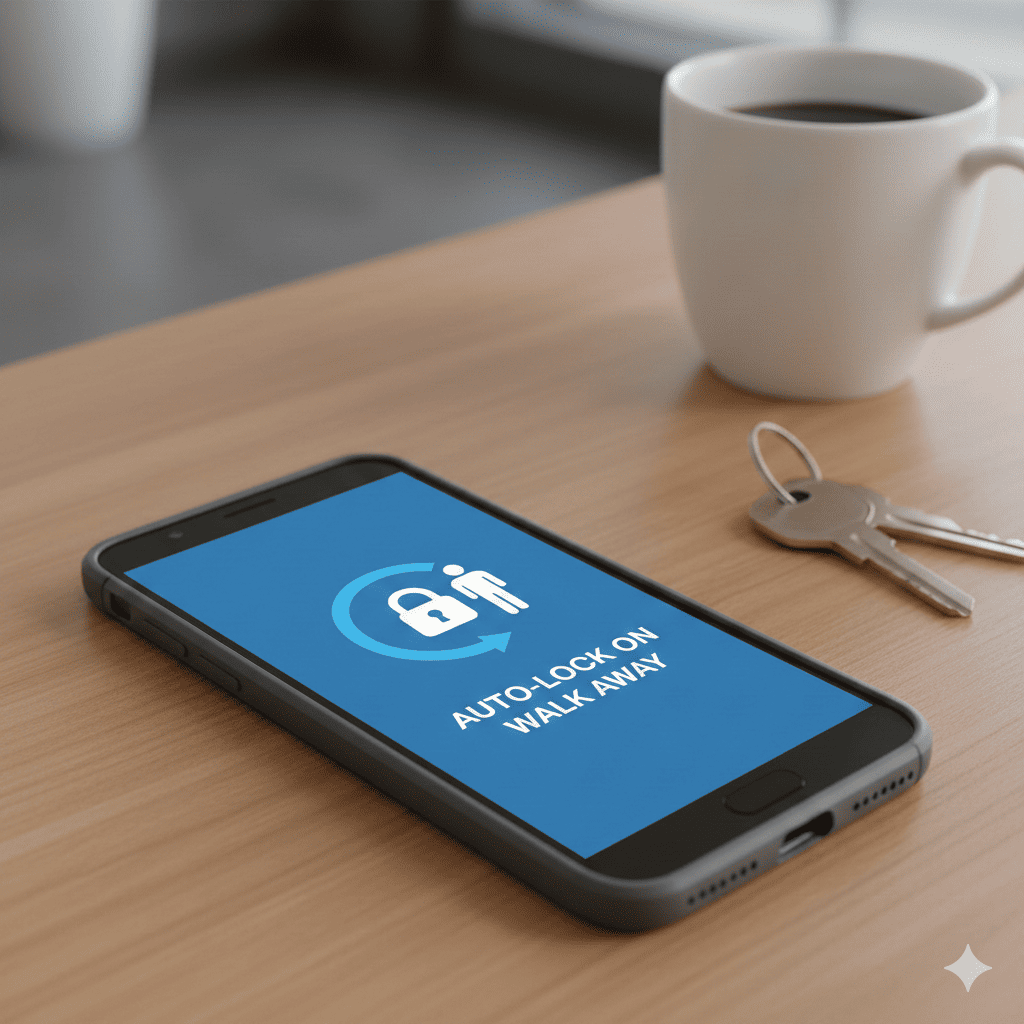
In an era where our smartphones contain our entire digital lives—banking apps, personal photos, confidential emails, social media accounts, and sensitive documents—phone security has never been more critical. Yet despite the risks, many people still leave their phones unlocked on desks, tables, and counters, creating opportunities for theft, snooping, and unauthorized access.
What if your phone could sense when you’ve walked away and automatically secure itself? This isn’t science fiction or a feature requiring expensive third-party apps. Hidden within Android’s settings is a powerful capability that most users never discover: Android phones can lock themselves automatically based on your physical proximity and movement patterns.
This intelligent security feature uses your phone’s built-in sensors to detect when you’re no longer nearby, triggering an automatic lock to protect your data. Unlike simple time-based screen timeouts, this system understands context and behavior, providing seamless security that adapts to how you actually use your device. In this comprehensive guide, we’ll explore everything you need to know about this remarkable feature and how to configure it for maximum protection.
1. Understanding Smart Lock and On-Body Detection
What Is Smart Lock Technology?
Smart Lock is Android’s suite of intelligent security features designed to keep your phone protected while minimizing the frustration of constantly unlocking it. At the heart of this system is the ability to recognize trusted situations and environments, automatically adjusting security levels accordingly. The feature we’re focusing on—the ability where Android phones can lock themselves automatically when you walk away—represents the defensive side of this technology.
Smart Lock was introduced in Android 5.0 Lollipop and has evolved significantly through subsequent versions. It combines multiple sensors, machine learning algorithms, and contextual awareness to make intelligent decisions about when your phone needs to be secured and when it’s safe to remain unlocked.
How On-Body Detection Works
The core technology enabling Android phones to lock themselves automatically is called On-Body Detection. This sophisticated system uses your phone’s accelerometer and gyroscope to understand your movement patterns and physical relationship with your device.
Movement Analysis
- Accelerometer detects motion patterns consistent with being carried
- Gyroscope tracks orientation changes and rotational movements
- Pattern recognition identifies walking, sitting, and stationary states
- Continuous monitoring maintains awareness of your phone’s status
- Machine learning adapts to your unique movement signature
Lock Triggering Mechanism
- Phone remains unlocked while detecting consistent body movement
- Sudden cessation of movement patterns indicates you’ve set the phone down
- Brief delay period allows for temporary placement (like at a counter)
- After predetermined interval without body movement, automatic lock engages
- Immediate re-lock if phone detects it’s been picked up by someone else
Security Considerations
- Feature balances convenience with protection
- Not as secure as immediate screen timeout
- Designed for situations where you’re nearby but not holding device
- Should be combined with other security measures
- User education about limitations is essential
The Complete Smart Lock Ecosystem
Understanding how Android phones can lock themselves automatically fits into the broader security picture:
Trusted Places
- Phone stays unlocked at designated safe locations
- Uses GPS and Wi-Fi positioning for location verification
- Home, office, or other frequently visited safe zones
- Automatically locks when leaving trusted area
Trusted Devices
- Remains unlocked when connected to specific Bluetooth devices
- Smart watches, car systems, or home speakers
- Proximity-based unlocking and locking
- Encrypted connection ensures security
Trusted Face
- Facial recognition keeps phone unlocked for authorized user
- Uses front camera to verify identity periodically
- Less secure than fingerprint but more convenient
- Complements other Smart Lock features
Voice Match
- Google Assistant responds to your voice even when locked
- Personalized voice recognition
- Limited functionality for security
- Works alongside other unlock methods
2. The Critical Importance of Automatic Phone Locking
Real-World Security Threats
Understanding why Android phones can lock themselves automatically is valuable requires examining actual risks:
Opportunistic Theft
- Phones left on restaurant tables or coffee shop counters
- Quick grabs in public spaces while owner is distracted
- Targeting unlocked devices in gyms, libraries, or workplaces
- Airport and transportation hub vulnerabilities
- Beach and park theft during recreational activities
Social Engineering and Snooping
- Colleagues or friends accessing messages without permission
- Partners checking private communications
- Children accessing inappropriate content or making purchases
- Roommates or visitors browsing personal information
- Service personnel or repair technicians viewing data
Data Breach Consequences
- Access to banking and financial applications
- Identity theft through personal information exposure
- Social media account takeover and reputation damage
- Email and cloud storage compromise
- Loss of photos, videos, and irreplaceable memories
Statistics That Demand Attention
The numbers reveal why automatic locking is essential:
- Over 70 million smartphones are lost or stolen annually worldwide
- 95% of stolen unlocked phones have data accessed within minutes
- Average financial loss from smartphone theft exceeds 2,000 dollars per incident
- Only 7% of stolen phones are recovered by owners
- 68% of phone theft victims experience identity theft or fraud
- Unlocked phones are worth three times more on black market than locked ones
The Human Factor in Security
Traditional security measures fail because they conflict with human behavior:
Why Manual Locking Fails
- People forget to lock phones in familiar environments
- Inconvenience leads to disabled security features
- False sense of security in semi-public spaces
- Distraction and multitasking reduce vigilance
- Social pressure to remain accessible and responsive
How Automatic Locking Succeeds
- Removes burden of remembering to lock manually
- Operates invisibly without user intervention
- Adapts to actual usage patterns and contexts
- Provides security without sacrificing convenience
- Reduces cognitive load and decision fatigue
This is precisely why Android phones can lock themselves automatically—the feature acknowledges human limitations and compensates for them through intelligent automation.
3. Complete Setup Guide for Automatic Locking
Prerequisites and Compatibility
Before enabling the feature where Android phones can lock themselves automatically, verify compatibility:
System Requirements
- Android 5.0 Lollipop or later (feature improved in newer versions)
- Functional accelerometer and gyroscope sensors
- Screen lock method already configured (PIN, pattern, password, or biometric)
- Sufficient battery charge for sensor monitoring
- Latest Google Play Services update installed
Device Compatibility
- Available on most Android devices from major manufacturers
- Pixel phones have most refined implementation
- Samsung, OnePlus, Xiaomi, and others include the feature
- Some budget devices may have limited sensor accuracy
- Custom ROMs may have modified or enhanced versions
Step-by-Step Activation Process
Enabling the automatic locking feature varies slightly by manufacturer:
For Stock Android and Pixel Devices:
- Open Settings application
- Navigate to Security or Security & Privacy
- Tap on Smart Lock (may require PIN/password entry)
- Select On-Body Detection
- Toggle the switch to enable the feature
- Read and acknowledge the security notice
- Confirm your screen lock method
- Test by walking around with phone, then setting it down
For Samsung Galaxy Devices:
- Launch Settings from app drawer
- Select Lock Screen and Security or Biometrics and Security
- Tap Smart Lock option
- Authenticate with your unlock method
- Choose On-Body Detection
- Enable the toggle switch
- Review Samsung’s specific implementation notes
- Optionally adjust sensitivity in Advanced settings
For Other Android Manufacturers:
- Access main Settings menu
- Look for Security, Lock Screen, or Privacy sections
- Find Smart Lock or Intelligent Security features
- Locate On-Body Detection or similar option
- Enable after authentication
- Check manufacturer documentation for device-specific options
- Test functionality in controlled environment
Configuring Complementary Security Settings
To maximize protection from the feature where Android phones can lock themselves automatically, configure these related settings:
Screen Timeout Adjustment
- Set to reasonable duration (30 seconds to 2 minutes)
- Works alongside On-Body Detection
- Provides backup security if sensors fail
- Balance between convenience and security
- Consider different timeouts for battery vs. plugged-in states
Lock Screen Notifications
- Control what information appears when locked
- Hide sensitive content on lock screen
- Disable notification expansion without unlocking
- Configure per-app notification privacy
- Balance accessibility with information protection
Security Lock Settings
- Immediate lock when power button pressed
- Increase security lock timer
- Require authentication for specific actions
- Disable Smart Lock in high-security situations
- Configure lock after screen timeout behavior
4. Optimizing On-Body Detection for Daily Use
Understanding Sensor Sensitivity
The accuracy with which Android phones can lock themselves automatically depends on proper calibration:
Sensor Calibration Factors
- Phone case thickness and material affects sensor readings
- Carrying position (pocket, bag, hand) influences detection
- Walking speed and gait patterns vary by individual
- Environmental factors like vibration or movement in vehicles
- Phone orientation and how it’s held or placed
Testing Your Configuration
- Carry phone normally for 5-10 minutes while moving
- Set phone on stable surface and walk away
- Note how long until automatic lock engages
- Test in various scenarios (sitting, standing, walking)
- Adjust expectations based on your specific patterns
Real-World Usage Scenarios
How Android phones can lock themselves automatically works in common situations:
At the Office
- Unlocked while you carry it between meetings
- Locks automatically when placed on desk
- Remains accessible while you’re seated and working nearby
- Secures when you step away for coffee or bathroom
- Prevents coworker snooping during breaks
Coffee Shop or Restaurant
- Stay unlocked during conversation while holding phone
- Auto-lock when placed on table and you visit restroom
- Protection if you’re distracted talking with companions
- Security during bathroom breaks or ordering
- Peace of mind in semi-public spaces
Gym and Fitness Centers
- Secure in locker or on equipment
- Unlocked during workout when tracking exercises
- Automatic protection between sets or activities
- Prevents theft during high-distraction exercise
- Works with fitness apps and music playback
Home Environment
- Convenient access while moving around house
- Locks when set down temporarily
- Protection from children or visitors
- Flexibility for household multitasking
- Reduced need for constant manual locking
Commuting and Transit
- Stay unlocked while reading during commute
- Lock when you pocket phone to exit
- Security in crowded public transportation
- Protection during transfers or station changes
- Balance of accessibility and safety
Troubleshooting Common Issues
When Android phones can lock themselves automatically doesn’t work as expected:
Phone Locks Too Quickly
- Check screen timeout settings (may be too aggressive)
- Verify On-Body Detection is actually enabled
- Test phone case compatibility with sensors
- Ensure sensors aren’t covered or obstructed
- Update to latest Android version for improvements
Phone Doesn’t Lock When Expected
- Confirm On-Body Detection toggle is active
- Check if Trusted Place is overriding the feature
- Verify accelerometer and gyroscope functionality
- Test by completely powering off and restarting
- Ensure battery optimization isn’t limiting sensor access
Inconsistent Behavior
- Calibrate sensors through device settings
- Clear cache for Google Play Services
- Disable and re-enable Smart Lock features
- Remove and re-add screen lock method
- Factory reset as last resort (backup data first)
5. Security Best Practices and Limitations
Understanding Feature Limitations
While Android phones can lock themselves automatically, the feature has important constraints:
Security Trade-offs
- Not as secure as immediate manual locking
- Brief window of vulnerability after setting phone down
- Sensor accuracy varies by device and situation
- Potential for false negatives in certain scenarios
- Should not be sole security measure
When Not to Rely on Auto-Lock
- High-security environments or situations
- When handling extremely sensitive information
- In areas with high theft risk
- During financial transactions
- When knowingly in unsafe locations
Situations Where Feature May Fail
- Phone placed in moving vehicle (continued motion detected)
- Vibrating surfaces that simulate movement
- Certain phone cases interfering with sensors
- Hardware sensor malfunctions
- Software bugs or conflicts with third-party apps
Combining Multiple Security Layers
Maximize protection by using the feature where Android phones can lock themselves automatically alongside other measures:
Biometric Security
- Fingerprint scanner for quick unlocking
- Face recognition for hands-free access
- Iris scanning on supported devices
- Multiple biometric options registered
- Fallback to PIN/password when needed
App-Level Security
- Individual app locks for sensitive applications
- Banking apps requiring separate authentication
- Private folders with additional encryption
- Secure folder features on Samsung devices
- App pinning for lending phone to others
Remote Security Features
- Find My Device enabled and configured
- Remote lock capability tested and ready
- Remote wipe as nuclear option
- Location tracking active
- Trusted contact access for emergencies
Physical Security Practices
- Never leave phone completely unattended in public
- Use phone leash or tether in high-risk situations
- Position phone visibly in semi-public spaces
- Remain aware of surroundings and potential threats
- Trust your instincts about unsafe situations
Privacy Considerations
Understanding the privacy implications of letting Android phones lock themselves automatically:
Data Collection Concerns
- Sensor data processed locally on device
- No transmission to Google servers
- Movement patterns not stored long-term
- Privacy-respecting implementation
- Transparent operation and user control
Battery and Performance Impact
- Continuous sensor monitoring uses minimal battery
- Modern Android optimizes background sensor access
- Typical impact less than 2-3% daily battery
- Negligible effect on phone performance
- Benefits outweigh minimal resource usage
6. Advanced Configuration and Customization
Device Administrator Settings
Power users can enhance how Android phones can lock themselves automatically through advanced options:
Lock Screen Security
- Require authentication immediately after sleep
- Disable Smart Lock in specific apps
- Configure security timeout periods
- Set different rules for work profile
- Implement MDM policies for corporate devices
Sensor Management
- Access hidden developer options
- Monitor sensor behavior and accuracy
- Test accelerometer and gyroscope calibration
- Adjust sensitivity through ADB commands
- Create custom automation rules with Tasker
Integration with Third-Party Tools
Extend the capabilities of automatic locking:
Tasker Automation
- Create complex conditional locking rules
- Trigger locks based on multiple variables
- Location-aware security profiles
- Time-based security adjustments
- Integration with other smart home devices
IFTTT Integration
- Connect phone security to other services
- Automated backup triggers when leaving home
- Notification to wearable when phone locks
- Smart home security coordination
- Cloud service synchronization
Security Apps Enhancement
- Cerberus anti-theft features
- Prey for comprehensive device tracking
- Norton Mobile Security layers
- Avast Mobile Security components
- Kaspersky security suite
Creating Custom Security Profiles
Tailor how Android phones can lock themselves automatically to different situations:
Work Profile
- Stricter locking policies during business hours
- Automatic activation in office locations
- Enhanced security for work apps
- Separation of personal and professional data
- Compliance with corporate security requirements
Personal Profile
- Relaxed settings at home
- Balanced security in public spaces
- Entertainment-friendly configuration
- Social media access optimization
- Family and friend interaction considerations
Travel Profile
- Maximum security in unfamiliar locations
- Aggressive locking in airports and hotels
- International roaming security measures
- Public Wi-Fi protection enhancement
- Emergency contact quick access
7. Teaching Family Members About Auto-Lock
Setup for Elderly Users
Configuring Android phones to lock themselves automatically for seniors requires special consideration:
Simplified Configuration
- Enable all Smart Lock security features
- Set longer screen timeout for easier reading
- Large, simple PIN or pattern for unlocking
- Emergency contact on lock screen
- Clear instructions with screenshots
Education and Support
- Explain how automatic locking protects them
- Practice unlocking phone multiple times
- Demonstrate what happens when they walk away
- Provide written reference guide
- Regular check-ins to ensure proper use
Accessibility Features
- Larger touch targets for unlock inputs
- Voice unlock for arthritis or dexterity issues
- Visual aids for understanding lock status
- Audio feedback for lock and unlock
- Simplified interface options
Protecting Children’s Devices
Ensure Android phones can lock themselves automatically to protect young users:
Appropriate Security Levels
- Parental controls requiring authentication
- App restrictions when phone unlocks
- Content filtering and time limits
- Location tracking enabled
- Emergency contact always accessible
Teaching Responsibility
- Age-appropriate explanation of phone security
- Practice scenarios for losing phone
- Consequences of leaving phone unlocked
- Digital citizenship education
- Gradual independence with oversight
Family Account Management
Coordinate security across multiple devices:
Family Link Integration
- Centralized security policy management
- Remote lock and location tracking
- App approval and screen time management
- Age-appropriate content filtering
- Activity reports for parents
Shared Device Protocols
- Guest mode for temporary users
- Quick user switching with security
- Separate profiles for family members
- Shared calendar and location awareness
- Communication about security expectations
8. Comparing Android Auto-Lock with iOS Features
How iPhone Handles Automatic Locking
Understanding alternatives to how Android phones can lock themselves automatically:
iPhone Auto-Lock System
- Time-based screen timeout only
- No equivalent to On-Body Detection
- Apple Watch unlocking as proximity feature
- Face ID continuous authentication
- More restrictive but potentially more secure
Strengths of iOS Approach
- Simpler, more predictable behavior
- Fewer variables affecting security
- Consistent experience across devices
- Strong biometric integration
- Less prone to sensor-based failures
Weaknesses Compared to Android
- No intelligent context awareness
- Strictly time-based locking
- Less flexible for different usage patterns
- Requires manual intervention more often
- Limited customization options
Cross-Platform Security Philosophy
Different approaches to mobile security:
Android’s Flexibility
- User choice and customization priority
- Multiple security methods available
- Context-aware intelligent features
- Balancing convenience with protection
- Empowering users to make decisions
Apple’s Standardization
- Consistency across all devices
- Simplified security model
- Less user configuration needed
- Strong default security posture
- Limited but reliable options
9. Future of Automatic Phone Security
Emerging Technologies
The evolution of features where Android phones can lock themselves automatically:
AI and Machine Learning Advances
- Behavioral biometrics understanding individual patterns
- Predictive locking based on historical behavior
- Anomaly detection identifying unauthorized access
- Continuous authentication without explicit unlocking
- Context understanding beyond simple sensors
Enhanced Sensor Technology
- More accurate motion and position detection
- Radar-based proximity sensing
- Thermal sensors detecting body presence
- Ultrasonic authentication technology
- Multi-modal sensor fusion
Biometric Evolution
- Under-display fingerprint improvements
- Advanced facial recognition in any lighting
- Gait recognition as passive authentication
- Voice biometrics for continuous verification
- Multi-factor biometric combinations
Industry Trends and Standards
Security developments affecting automatic locking:
Regulatory Requirements
- Privacy regulations influencing sensor data use
- Security standards for mobile devices
- Data protection compliance requirements
- Industry best practices codification
- International harmonization efforts
Manufacturer Innovations
- Competition driving feature improvements
- Patent portfolios shaping capabilities
- Research and development investments
- User feedback integration
- Cross-industry collaboration
Android’s Security Roadmap
Expected enhancements to how Android phones can lock themselves automatically:
Short-Term Improvements
- More granular control over sensitivity
- Better battery optimization
- Enhanced machine learning accuracy
- Expanded Smart Lock options
- Improved user interface and education
Long-Term Vision
- Zero-touch security requiring no user action
- Perfect balance of convenience and protection
- Elimination of passwords and PINs
- Seamless multi-device authentication
- Proactive threat prevention
10. Maximizing Your Mobile Security Strategy
Comprehensive Protection Checklist
Beyond enabling Android phones to lock themselves automatically, implement complete security:
Essential Security Features
- Strong screen lock (6-digit PIN minimum)
- Biometric authentication enabled
- On-Body Detection active
- Find My Device configured
- Regular software updates installed
- App permissions reviewed quarterly
- Two-factor authentication on important accounts
- Encrypted device storage enabled
- Secure lock screen notifications
- Automatic backup configured
Regular Security Maintenance
- Monthly security setting review
- Quarterly password changes for critical accounts
- Annual comprehensive security audit
- Immediate response to security alerts
- Stay informed about new threats
- Update recovery information
- Test backup and restore procedures
- Document security configuration
Creating Security Habits
Develop practices that complement automatic locking:
Daily Routines
- Verify phone is locked when setting down
- Maintain awareness of phone location
- Use secure surfaces when placing phone
- Avoid predictable patterns and locations
- Keep phone with you in public spaces
Emergency Preparedness
- Know how to remotely lock and wipe
- Emergency contacts configured properly
- Important data backed up to cloud
- Insurance and protection plans current
- Documented phone identifiers (IMEI)
Ongoing Education
- Follow security blogs and news
- Understand emerging threats
- Share knowledge with family
- Adapt to new attack vectors
- Maintain healthy security paranoia
When to Seek Professional Help
Some situations require expert assistance:
Professional Security Consultation
- Business or enterprise device management
- High-value target individuals
- Complex multi-device coordination
- Compliance with industry regulations
- Recovery from security breach
Technical Support Resources
- Manufacturer support channels
- Google Android support
- Carrier technical assistance
- Third-party security experts
- Online community forums
Conclusion: Smart Security for Modern Life
The ability for Android phones to lock themselves automatically represents a significant advancement in mobile security technology. This intelligent feature acknowledges the reality of how we use our devices—constantly moving between contexts, juggling multiple tasks, and sometimes forgetting basic security practices in the rush of daily life.
By leveraging your phone’s built-in sensors and Google’s sophisticated algorithms, this automatic locking capability provides a crucial safety net. It protects your personal information, financial data, and digital identity without requiring constant vigilance or manual intervention. The feature works silently in the background, adapting to your movement patterns and behaviors to provide security exactly when you need it.
However, understanding that Android phones can lock themselves automatically is only the first step. True security comes from combining this feature with other protective measures, maintaining awareness of potential threats, and developing good security habits. No single feature provides complete protection, but when properly configured and used alongside biometric authentication, strong passwords, and regular security practices, automatic locking becomes a powerful component of your overall defense strategy.
Take action today by enabling On-Body Detection and related Smart Lock features on your Android device. Walk through the setup process, test the functionality in different scenarios, and adjust settings to match your lifestyle. Extend this protection to family members, especially vulnerable individuals like children and elderly relatives who may be targeted by opportunistic thieves or malicious actors.
The technology enabling Android phones to lock themselves automatically is already in your pocket, waiting to be activated. Don’t let this powerful security capability remain dormant. Enable it now, configure it properly, and enjoy the peace of mind that comes from knowing your phone is actively protecting itself—and you—throughout your day.
Also read this:
This Android Feature Silently Blocks Scam Calls Without Any App
This Built-In Android Feature Warns You While Walking — Most Users Don’t Know
AI SaaS Automation Business Ideas You Can Launch Today (High-Demand Niches 2025)