
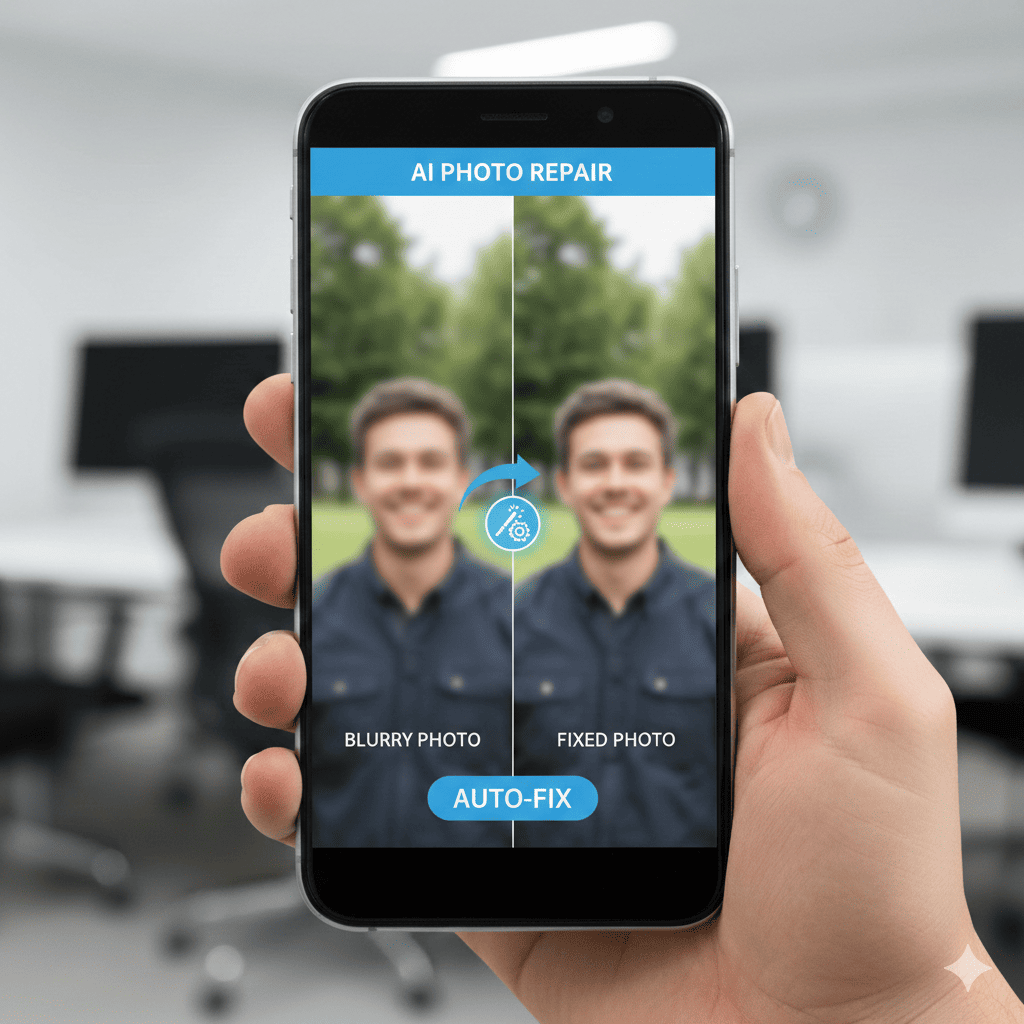
AI Tool Automatically Fixes Blurry Photos We’ve all experienced the disappointment of reviewing photos only to discover they’re blurry, out of focus, or ruined by motion blur. That perfect candid moment with family, the once-in-a-lifetime sunset, or the important document you needed to capture—all rendered unusable by camera shake, subject movement, or focus issues. For years, these imperfect photos were simply lost, relegated to the trash folder or forgotten in your gallery.
The photography landscape has fundamentally changed with the integration of artificial intelligence into smartphone cameras. Hidden within your Android device is a powerful capability that most users never discover: an AI tool that automatically fixes blurry photos using sophisticated machine learning algorithms. This isn’t a third-party app requiring downloads or subscriptions—it’s built directly into Google Photos and certain camera applications, silently working to rescue images that would have been unusable just a few years ago.
This comprehensive guide reveals everything you need to know about how this AI tool automatically fixes blurry photos, from the underlying technology to practical activation steps. You’ll learn which types of blur can be corrected, how to access these features, and techniques for maximizing the quality of your photo restoration. Whether you’re trying to salvage precious memories or improve casual snapshots, this technology puts professional-grade image enhancement literally at your fingertips.
1. Understanding AI Photo Enhancement Technology
What Makes Photos Blurry?
Before exploring how this AI tool automatically fixes blurry photos, understanding blur types is essential:
Motion Blur
- Camera movement during exposure creating directional streaks
- Subject movement while shutter is open
- Hand shake at slow shutter speeds
- Fast-moving subjects with inadequate shutter speed
- Panning motion creating background blur
- Intentional motion blur that went too far
Focus Blur (Defocus)
- Camera focused on wrong subject or area
- Insufficient depth of field for scene
- Autofocus failure or misfocus
- Manual focus error in pro mode
- Lens quality limitations
- Focus breathing during video frame extraction
Other Blur Types
- Gaussian blur from soft focus or haze
- Lens aberrations creating softness
- Digital zoom degradation
- Low light noise reduction artifacts
- Compression artifacts appearing as blur
- Atmospheric conditions affecting clarity
How AI Deblurring Works
The technology behind how this AI tool automatically fixes blurry photos is remarkably sophisticated:
Machine Learning Fundamentals
- Neural networks trained on millions of image pairs
- Sharp and blurred versions teach AI patterns
- Deep learning identifies blur characteristics
- Pattern recognition reconstructs missing detail
- Predictive algorithms fill information gaps
- Continuous improvement through model updates
Image Analysis Process
- AI examines entire image for blur patterns
- Identifies blur type and severity
- Determines blur direction and kernel
- Analyzes edges and textures
- Recognizes subjects and context
- Creates enhancement strategy
Reconstruction Technique
- Deconvolution algorithms reverse blur effect
- Edge enhancement sharpens boundaries
- Texture synthesis recreates detail
- Frequency analysis separates signal from noise
- Super-resolution adds realistic detail
- Noise reduction prevents artifact amplification
Quality Preservation
- Maintains natural appearance
- Avoids over-sharpening and halos
- Preserves color accuracy
- Keeps image metadata intact
- Prevents introduction of artifacts
- Balances enhancement with authenticity
Available AI Enhancement Tools
Different implementations of how this AI tool automatically fixes blurry photos:
Google Photos Magic Eraser and Enhance
- Integrated photo editing suite
- One-tap enhancement options
- AI-powered suggestion system
- Cloud processing for heavy lifting
- Free for Google Photos users
- Works on photos from any camera
Pixel Camera Unblur Feature
- Exclusive to Pixel devices initially
- Real-time and post-processing options
- Optimized for Pixel camera system
- On-device processing capability
- Integration with Google Photos
- Expanding to other Android devices
Samsung Photo Editor AI
- Object Eraser and Remaster tools
- Galaxy AI enhancement features
- Integration with Gallery app
- One UI optimization
- S Pen integration for precision
- Specific to Samsung Galaxy devices
Third-Party Solutions
- Remini and similar enhancement apps
- Adobe Lightroom mobile AI features
- Snapseed healing and sharpening
- Professional editing apps
- Specialized deblur applications
- Varying quality and privacy considerations
2. The Impact of Blurry Photos
Personal Memory Loss
Why this AI tool automatically fixes blurry photos matters for preserving moments:
Irreplaceable Moments
- Once-in-a-lifetime events captured poorly
- Family gatherings with moving children
- Travel photos from unique locations
- Milestone celebrations and ceremonies
- Candid expressions and emotions
- Historical documentation of personal life
Emotional Value
- Sentimental attachment to imperfect images
- Memories associated with photos
- No ability to recreate the moment
- Loss compounded by blur
- Emotional disappointment from poor quality
- Desire to share memories clearly
Archive Restoration
- Old photos scanned with imperfections
- Legacy images from early digital cameras
- Photos from deceased relatives
- Historical family documentation
- Digitization of film photographs
- Preservation of cultural heritage
Professional and Practical Applications
How this AI tool automatically fixes blurry photos serves functional needs:
Document Capture
- Business cards and contact information
- Receipts and financial records
- Whiteboard notes and presentations
- Contracts and legal documents
- Medical prescriptions and records
- License plates and identification
Real Estate and Commerce
- Property listing photos
- Product photography for sales
- Menu items and catalog images
- Before-and-after documentation
- Insurance claims evidence
- Marketplace item photos
Educational and Work
- Lecture slides and board notes
- Conference presentations captured
- Research documentation
- Field work photography
- Meeting notes and diagrams
- Remote learning materials
Statistics on Photo Quality Issues
Numbers revealing why this AI tool automatically fixes blurry photos is valuable:
- Average smartphone user takes 20-25 photos daily
- Approximately 30% of casual photos have blur issues
- 15% of important photos are deemed unusable due to blur
- Users delete 40% of blurry photos immediately
- 65% wish they could improve blurry photos
- Professional photographers spend hours on deblurring
- Millions of memories lost annually to poor photo quality
3. Accessing Google Photos Enhancement Features
Setting Up Google Photos
First step to using how this AI tool automatically fixes blurry photos:
Initial Configuration
- Install Google Photos from Play Store if not present
- Open the application on your device
- Sign in with your Google account
- Grant necessary permissions for photos and storage
- Choose backup quality settings (Original or High quality)
- Enable automatic backup for continuous protection
- Wait for initial photo library sync to complete
- Explore the editing tools in the app interface
Optimization Settings
- Enable “Back up & sync” for cloud processing
- Select appropriate photo quality for storage
- Configure cellular data usage for uploads
- Set up automatic device organization
- Enable suggested edits and enhancements
- Review privacy settings for shared albums
Using the Enhance Feature
Primary method where this AI tool automatically fixes blurry photos works:
Basic Enhancement Process
- Open Google Photos application
- Select the blurry photo you want to fix
- Tap the Edit icon (sliders or pencil)
- Look for “Enhance” or magic wand icon
- Tap once to apply automatic AI enhancement
- Wait for processing to complete
- Review the enhanced result
- Adjust manually if needed
- Tap “Done” or “Save” to keep changes
- Original photo preserved automatically
What Enhance Does
- Analyzes image for multiple improvement opportunities
- Applies deblurring algorithms automatically
- Adjusts exposure and contrast
- Corrects color balance and saturation
- Enhances shadow and highlight detail
- Reduces noise while preserving texture
- Sharpens edges and fine details
Advanced Editing Tools
Additional capabilities where this AI tool automatically fixes blurry photos assists:
Suggestions Tab
- AI-recommended edits for each photo
- One-tap application of multiple adjustments
- Context-aware enhancement suggestions
- Seasonal and thematic editing ideas
- Smart cropping and straightening
- Background blur and depth effects
Manual Adjustment Tools
- Sharpness slider for fine-tuning
- Detail enhancement for texture
- Denoise tool for grain reduction
- HDR effects for dynamic range
- Portrait light for face photos
- Sky enhancement for landscapes
Unblur Specific Feature (Pixel)
- Dedicated deblur tool in edit menu
- Specifically targets motion and focus blur
- More aggressive than general enhance
- Works on photos from any device
- Available in Google Photos on Pixel phones
- Expanding to more Android devices
4. Maximizing AI Enhancement Results
Pre-Processing Best Practices
Preparing images for how this AI tool automatically fixes blurry photos works best:
Image Selection
- Choose photos with moderate blur rather than extreme
- Ensure adequate lighting in original capture
- Select images with clear subject matter
- Avoid heavily compressed or low-resolution photos
- Multiple similar shots increase success chances
- Consider importance before enhancement attempt
Understanding Limitations
- Extreme blur cannot be fully corrected
- Completely out-of-focus images have limited recovery
- Very low resolution photos lack recoverable detail
- Heavy compression artifacts interfere with processing
- Synthetic detail may not match expectations
- Some photos better served by artistic blur acceptance
Optimal Processing Techniques
Getting best results from this AI tool automatically fixes blurry photos:
Sequential Enhancement Approach
- Start with one-tap Enhance feature
- Evaluate results before manual adjustments
- Apply targeted tools to specific areas
- Use selective editing for subject focus
- Layer multiple enhancement techniques
- Compare with original frequently
Balancing Enhancement Levels
- Avoid over-sharpening artifacts
- Maintain natural appearance
- Preserve intentional depth of field
- Keep realistic textures
- Balance detail with smoothness
- Accept some blur as part of image character
Device and Network Optimization
- Ensure strong internet connection for cloud processing
- Allow adequate time for AI analysis
- Update Google Photos to latest version
- Clear app cache if processing issues occur
- Use Wi-Fi for large image processing
- Restart app if enhancement fails
Comparing Before and After
Evaluating how effectively this AI tool automatically fixes blurry photos:
Assessment Criteria
- Overall sharpness improvement
- Edge definition clarity
- Texture detail enhancement
- Face recognition improvement
- Text readability increase
- Artifact introduction (should be minimal)
Making Enhancement Decisions
- Compare side-by-side with original
- Zoom to 100% to check details
- View at intended display size
- Consider final use case
- Get second opinion if unsure
- Trust your aesthetic judgment
5. Alternative Android Enhancement Solutions
Samsung Galaxy AI Features
How Samsung’s version of this AI tool automatically fixes blurry photos operates:
Object Eraser and Remaster
- AI-powered photo improvement tools
- Available in Samsung Gallery app
- One-tap remaster for overall enhancement
- Object removal with automatic fill
- Scene optimizer suggestions
- Galaxy AI integration in newer models
Activation on Samsung Devices
- Open Samsung Gallery application
- Select photo requiring enhancement
- Tap edit icon or three-dot menu
- Choose “Remaster” or “Enhance” option
- Allow AI processing to complete
- Review and adjust results
- Save enhanced version
- Access additional Galaxy AI tools
Photo Assist Features (Galaxy S24+)
- Generative AI editing capabilities
- Advanced deblur and enhancement
- Shadow and reflection removal
- Creative editing suggestions
- Integration with Galaxy ecosystem
- Cloud and on-device processing options
Third-Party Applications
Other implementations where this AI tool automatically fixes blurry photos concept exists:
Remini – Photo Enhancement
- Specialized AI photo and video enhancement
- Dramatic deblurring capability
- Face enhancement focus
- Free tier with limitations
- Subscription for unlimited processing
- Privacy considerations with cloud processing
Adobe Lightroom Mobile
- Professional-grade editing tools
- AI-powered enhance features
- Selective clarity adjustment
- Advanced sharpening controls
- Integrated with Adobe ecosystem
- Subscription required for full features
Snapseed by Google
- Free comprehensive editing suite
- Healing and sharpening tools
- Selective adjustment capability
- Professional-level controls
- On-device processing
- No subscription required
PicsArt and PhotoDirector
- Consumer-friendly editing apps
- AI enhancement features
- One-tap improvement options
- Social media integration
- Various pricing models
- Additional creative tools
When to Use Third-Party Tools
Situations where alternatives to this AI tool automatically fixes blurry photos make sense:
Professional Requirements
- Need for specific editing workflows
- Advanced control over enhancement parameters
- Batch processing capabilities
- RAW file support
- Color space management
- Print production requirements
Specialized Needs
- Extreme blur correction attempts
- Face-specific enhancement
- Video frame deblurring
- Artistic effect requirements
- Specific output formats
- Integration with other tools
Privacy Concerns
- Preference for on-device processing
- Sensitive image content
- Corporate or professional photos
- Control over data handling
- Offline processing requirements
- Local storage preferences
6. Understanding Technical Limitations
What AI Cannot Fix
Realistic expectations for what this AI tool automatically fixes blurry photos achieves:
Irreparable Image Issues
- Complete lack of focus across entire frame
- Extreme motion blur with no recoverable detail
- Severely underexposed or overexposed images
- Heavy compression artifacts masking detail
- Resolution too low for meaningful enhancement
- Damage to image file or corruption
Physical Limitations
- Cannot add information that never existed
- Limited by sensor resolution and quality
- Bound by laws of physics and optics
- Noise and blur trade-offs inevitable
- Processing artifacts possible
- Synthetic detail may appear unnatural
Contextual Challenges
- Complex scenes with multiple blur types
- Intentional artistic blur misidentified
- Mixed focus depths complicate processing
- Transparency and reflection confusion
- Similar textures difficult to differentiate
- Dynamic scenes with motion variation
Managing Expectations
Understanding capabilities where this AI tool automatically fixes blurry photos:
Reasonable Outcomes
- Moderate improvements in most cases
- Significant enhancement for mild blur
- Better readability of text and details
- Improved face recognition and clarity
- Enhanced edges and boundaries
- More presentable social media photos
Unrealistic Expectations
- Perfect sharpness from very blurry images
- Forensic-level detail recovery
- Complete elimination of all blur
- No trade-offs or artifacts
- Instantaneous processing always
- Replacement for good photography technique
Continuous Improvement
How this AI tool automatically fixes blurry photos keeps getting better:
Machine Learning Advancement
- Models trained on increasingly diverse datasets
- Improved algorithms from research breakthroughs
- Better understanding of blur physics
- Enhanced artifact prevention
- Faster processing with maintained quality
- Expanded blur type coverage
User Feedback Integration
- Enhancement results evaluated by users
- Unsuccessful corrections inform training
- Preferences shape algorithm priorities
- Edge cases identified and addressed
- Quality metrics continuously refined
- Community contribution to improvement
7. Privacy and Security Considerations
Data Processing and Storage
Understanding how this AI tool automatically fixes blurry photos handles your images:
Google Photos Privacy Model
- Photos stored in Google’s cloud infrastructure
- Processing occurs on Google’s servers for heavy operations
- Subject to Google’s privacy policy
- Data used to improve services
- User controls over sharing and visibility
- Encryption in transit and at rest
On-Device Processing
- Some enhancements processed locally
- Pixel devices have enhanced local capability
- Reduces privacy concerns
- Faster for simple enhancements
- No internet required for basic edits
- Limited by device processing power
Data Retention and Use
- Enhanced photos remain in your library
- Original versions preserved automatically
- Metadata maintained throughout process
- Anonymous usage data collected
- Aggregated data improves AI models
- User can delete photos anytime
Privacy-Conscious Alternatives
Options when this AI tool automatically fixes blurry photos raises concerns:
Local Processing Apps
- Snapseed for on-device editing
- Device manufacturer native editors
- Professional apps with local processing
- No cloud upload required
- Complete data control
- Slower or limited enhancement capability
Privacy Settings Optimization
- Review Google Photos privacy settings
- Disable data sharing if preferred
- Use device-only backup
- Limit third-party integrations
- Regular privacy audit
- Understand terms of service
Offline Enhancement Solutions
- Desktop photo editing software
- Transfer photos to computer
- Professional tools with local processing
- Complete control over data
- No internet dependency
- Higher learning curve
8. Best Photography Practices to Minimize Blur
Capture Techniques
Reducing need for this AI tool automatically fixes blurry photos through better shooting:
Proper Holding Technique
- Stabilize phone with both hands
- Tuck elbows against body for support
- Use volume button as shutter for stability
- Avoid tapping screen to capture
- Lean against solid objects when possible
- Take multiple shots of important moments
Camera Settings Optimization
- Enable HDR for better dynamic range
- Use night mode in low light
- Activate motion photos for action shots
- Enable image stabilization features
- Adjust exposure before shooting
- Use timer for self-portraits
Lighting Considerations
- Maximize available light whenever possible
- Position subjects near light sources
- Avoid extreme backlighting
- Use flash when truly necessary
- Golden hour provides best natural light
- Avoid mixed color temperature lighting
When to Use AI Enhancement
Strategic deployment of how this AI tool automatically fixes blurry photos:
Good Candidates for Enhancement
- Slightly soft focus images
- Minor camera shake blur
- Important photos with mild issues
- Document photos with readability problems
- Social media posts needing improvement
- Photos where moment matters more than perfection
Better to Retake
- When possible to recreate shot
- Professional or commercial photography
- Important documentation requiring clarity
- Controlled environments and subjects
- When slight delay is acceptable
- Learning opportunities for technique
Building Better Photo Habits
Reducing dependence on this AI tool automatically fixes blurry photos:
Proactive Photography
- Review photos immediately after capture
- Retake uncertain shots while still possible
- Understand your device camera capabilities
- Practice in various lighting conditions
- Learn from consistently blurry photos
- Take multiple versions with different settings
Device Maintenance
- Keep camera lens clean always
- Remove case if interfering with camera
- Update camera app regularly
- Restart device if camera lagging
- Check for hardware issues
- Protect phone from physical damage
9. Creative Applications of AI Enhancement
Artistic Photo Restoration
Using this AI tool automatically fixes blurry photos for creative projects:
Vintage Photo Revival
- Restore old family photographs
- Enhance scanned film photos
- Improve historical documentation
- Preserve fading memories
- Create sharper prints from old images
- Digital archival of family history
Creative Enhancement
- Selective sharpening for artistic effect
- Contrast manipulation with clarity
- Texture enhancement for mood
- Dramatic detail emphasis
- Mixed technique combinations
- Unique aesthetic development
Social Media Optimization
How this AI tool automatically fixes blurry photos improves online presence:
Platform-Specific Enhancement
- Instagram post quality improvement
- Facebook photo album optimization
- Profile picture clarity enhancement
- Story and reel quality boost
- Professional LinkedIn photos
- Dating profile photo improvement
Engagement Optimization
- Sharper images attract more attention
- Clear photos convey professionalism
- Detail visibility improves interaction
- Quality signals care and effort
- Enhanced photos shared more frequently
- Better representation of experiences
Professional Applications
Business uses where this AI tool automatically fixes blurry photos adds value:
Real Estate Enhancement
- Property photos clarification
- Virtual tour improvement
- Listing photo optimization
- Detail emphasis for features
- Quick turnaround for clients
- Cost-effective improvement
Product Photography
- Marketplace listing enhancement
- Catalog photo improvement
- Detail clarity for specifications
- Texture and material representation
- Zoom-worthy product images
- Professional appearance on budget
Content Creation
- Blog post image improvement
- Video thumbnail clarity
- Tutorial screenshot enhancement
- Infographic element sharpening
- Presentation slide optimization
- Marketing material refinement
10. Future of AI Photo Enhancement
Emerging Technologies
Evolution of how this AI tool automatically fixes blurry photos will advance:
Real-Time Enhancement
- AI processing during capture
- Automatic blur prevention
- Predictive stabilization
- Instant optimization preview
- Zero-latency enhancement
- Computational photography advancement
Advanced AI Capabilities
- Complete scene reconstruction
- Multi-frame super-resolution
- Depth-aware deblurring
- Subject-specific enhancement
- Context understanding
- Photorealistic detail synthesis
Hardware Integration
- Dedicated AI processors
- Enhanced camera sensors
- Multi-lens computational imaging
- Lidar integration for depth
- Advanced stabilization systems
- Quantum dot sensors
Google’s Enhancement Roadmap
Expected improvements to this AI tool automatically fixes blurry photos:
Short-Term Developments
- Expansion to more Android devices
- Faster processing speeds
- Better artifact prevention
- Enhanced video deblurring
- Batch processing capabilities
- Improved user interface
Long-Term Vision
- Perfect clarity regardless of capture quality
- Complete blur elimination
- Real-time computational photography
- Universal enhancement availability
- No quality loss ever
- Seamless integration across devices
Industry Trends
How the market shapes what this AI tool automatically fixes blurry photos becomes:
Competitive Innovation
- Apple’s Deep Fusion and Photonic Engine
- Samsung’s AI photo editing suite
- Chinese manufacturer AI features
- Cross-industry advancement
- Open-source contributions
- Democratization of technology
Consumer Expectations
- Perfect photos expected always
- Instant enhancement demand
- Professional quality from smartphones
- Easy one-tap solutions
- Privacy-respecting processing
- Free or low-cost access
Conclusion: Transforming Imperfect Memories into Treasures
The discovery that this AI tool automatically fixes blurry photos exists within your Android device should fundamentally change how you think about photography mistakes. For generations, a blurry photo meant a lost memory, an unusable image, or a missed opportunity. Today’s artificial intelligence technology transforms these imperfect captures into clear, detailed images that preserve precious moments and serve practical purposes.
The sophistication of this AI tool automatically fixes blurry photos is remarkable—neural networks trained on millions of images, algorithms that understand the physics of blur, and machine learning that continuously improves with each enhancement. Yet despite this complexity, the user experience is beautifully simple: open Google Photos, tap enhance, and watch as your blurry image transforms before your eyes.
What makes this technology particularly powerful is its accessibility. You don’t need expensive software, professional photography skills, or technical expertise. The AI tool automatically fixes blurry photos right within the apps you already use, processing your images either on your device or in the cloud, all while preserving your original photos. Whether you’re restoring treasured family memories, improving casual snapshots for social media, or salvaging important document photos, the capability exists at your fingertips.
Also read this:
This Built-In AI Feature Improves Voice Calls Automatically
This Hidden Android Setting Protects You From Public Wi-Fi Attacks
Android Phones Can Lock Themselves Automatically When You Walk Away