
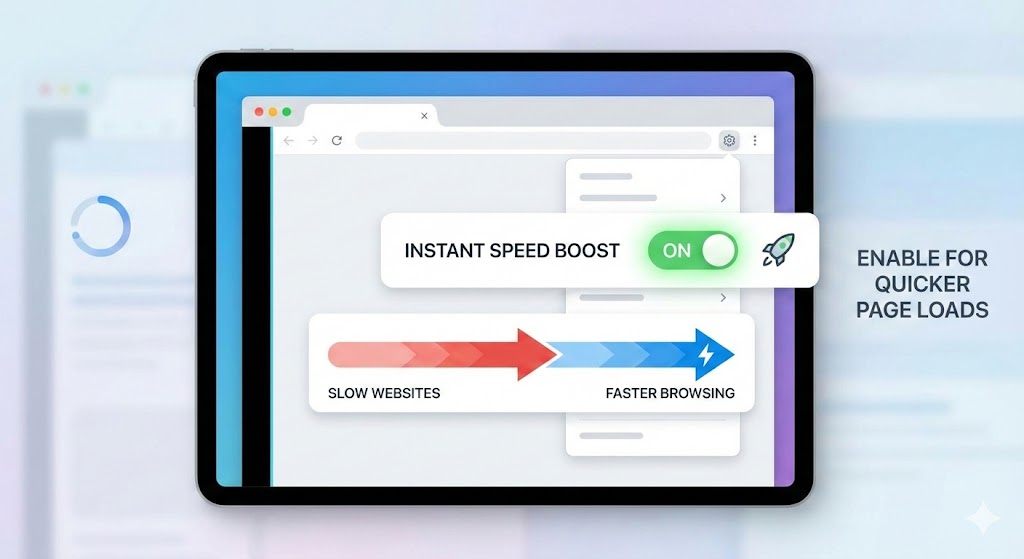
Speed Up Slow Websites Are you tired of waiting for websites to load? Do you find yourself staring at loading spinners and blank screens while your patience wears thin? The frustration of slow websites is universal, but what if I told you there’s a simple browser setting that can dramatically speed up slow websites almost instantly?
In this comprehensive guide, we’ll explore the powerful browser configurations that can transform your web browsing experience from sluggish to lightning-fast. Whether you’re dealing with bandwidth limitations, outdated hardware, or simply want to optimize your browsing experience, these settings will help you speed up slow websites without requiring any technical expertise.
1. Understanding Why Websites Load Slowly
Before we dive into the solution that will speed up slow websites, it’s essential to understand what causes web pages to crawl at a snail’s pace.
The Main Culprits Behind Slow Loading Times
Modern websites are complex ecosystems of content, scripts, and multimedia elements. When you visit a webpage, your browser must download and process dozens—sometimes hundreds—of different files. These include HTML documents, CSS stylesheets, JavaScript files, images, videos, advertisements, tracking scripts, and third-party widgets.
Each element creates a request that your browser must make to various servers scattered across the internet. The more requests required, the longer the loading time. Poor server response times, unoptimized images, and excessive JavaScript can all contribute to the problem.
Network Congestion and Bandwidth Limitations
Your internet connection plays a crucial role in how quickly websites load. Even with a fast connection, network congestion during peak hours can slow things down significantly. Mobile users on cellular networks often experience the worst loading times due to variable signal strength and data throttling.
Browser Overhead and Resource Consumption
Modern browsers are powerful applications that consume significant system resources. When multiple tabs are open, each running its own scripts and processing data, your computer’s memory and CPU can become overwhelmed, causing slow websites to become even slower.
2. The Game-Changing Browser Setting: Data Saver Mode
The most effective browser setting to speed up slow websites is the often-overlooked Data Saver mode, also known as Lite mode or bandwidth optimization. This powerful feature fundamentally changes how your browser loads web pages.
How Data Saver Mode Works
Data Saver mode operates by routing your web traffic through proxy servers maintained by the browser company. These servers act as intermediaries, compressing and optimizing web content before it reaches your device. Images are compressed, unnecessary code is stripped away, and resources are optimized for faster delivery.
The process is seamless and transparent. When you enable this feature, the proxy servers analyze each webpage you request, compress the data using advanced algorithms, and deliver a lighter version to your browser. This can reduce data usage by up to seventy percent while maintaining the essential functionality and appearance of websites.
The Technical Magic Behind Compression
The compression technology employed by Data Saver mode is sophisticated. Images undergo lossy compression that reduces file size while preserving visual quality. JPEG images are re-encoded at optimal quality settings, and PNG files are converted to more efficient formats when appropriate.
Text-based resources like HTML, CSS, and JavaScript are minified and compressed using GZIP or Brotli algorithms. Redundant code is removed, whitespace is eliminated, and the resulting files are significantly smaller without losing functionality.
3. Enabling Data Saver Mode in Different Browsers
Each browser implements data saving features differently. Let’s explore how to activate this setting across the most popular browsers to speed up slow websites on your device.
Google Chrome Desktop and Mobile
speed up slow websites Chrome’s Lite mode was a standout feature for years, though Google has evolved this functionality over time. To access bandwidth-saving features in Chrome:
Open Chrome and click the three-dot menu icon in the top-right corner. Navigate to Settings, then select Performance from the sidebar. Here you’ll find options to optimize memory usage and limit resource consumption.
For Chrome on Android, open the app and tap the three-dot menu. Go to Settings, then Lite mode. Toggle the feature on to begin compressing web pages and speed up slow websites immediately.
Microsoft Edge Efficiency Mode
Microsoft Edge offers robust efficiency features designed to reduce resource consumption and speed up slow websites. The browser includes an Efficiency mode that limits resource usage when your device is running on battery power or when specific tabs are inactive.
Access Edge settings by clicking the three-dot menu, selecting Settings, and navigating to System and performance. Here you can enable Efficiency mode and customize when it activates. Edge also offers a built-in data saver feature for mobile devices.
Opera’s Built-in Compression Technology
Opera has long been a pioneer in data compression technology. The Opera browser includes native compression features that don’t require separate extensions or complex configuration.
To enable Opera’s data saving features, open Settings from the menu, select Advanced, then Privacy and security. Look for the option to enable the built-in VPN or compression features. Opera’s technology can speed up slow websites by compressing data before it reaches your device.
Safari’s Experimental Features
Safari on iOS and macOS includes various optimization features, though Apple doesn’t market a specific “data saver” mode. However, you can enable experimental features and optimizations that improve loading performance.
On iOS, go to Settings, scroll to Safari, and explore options like Block All Cookies, Fraudulent Website Warning, and JavaScript toggle. While these don’t compress data, they can speed up slow websites by reducing unnecessary resource loading.
4. Advanced Browser Settings for Maximum Speed
Beyond data saver mode, several additional browser settings can dramatically speed up slow websites and enhance your browsing experience.
Disabling Auto-Playing Media
Videos and audio files that automatically play when you visit a website consume enormous bandwidth and processing power. Disabling autoplay is one of the quickest ways to speed up slow websites.
In Chrome, type “chrome://settings/content/sound” in the address bar and toggle off “Allow sites to play sound.” For autoplay video control, you can install extensions or adjust site-specific permissions.
Firefox users can type “about:config” in the address bar, search for “media.autoplay.default,” and set it to “1” to block autoplay by default. This simple change prevents unnecessary media downloads and speeds up page loading significantly.
Blocking Resource-Intensive Scripts
JavaScript frameworks and third-party scripts are essential for modern web functionality, but they’re also major performance bottlenecks. Selectively blocking scripts can speed up slow websites without breaking core functionality.
Browser extensions like uBlock Origin or NoScript give you granular control over which scripts run on each website. While this requires some configuration and may initially break certain sites, the performance improvements are substantial.
Enabling Hardware Acceleration
Hardware acceleration offloads processing tasks from your CPU to your GPU, which is specifically designed for rendering graphics and animations. This feature can significantly speed up slow websites that contain complex visual elements.
In Chrome, go to Settings, click Advanced, and under System, ensure “Use hardware acceleration when available” is enabled. Similar options exist in Firefox and Edge under their performance settings.
Adjusting Cache Settings
Your browser cache stores copies of web resources locally, allowing faster loading on subsequent visits. Optimizing cache settings can help speed up slow websites you visit frequently.
Most browsers automatically manage cache settings, but you can adjust the cache size and behavior in advanced settings. A larger cache means more resources stored locally, reducing the need to download them repeatedly.
5. Image and Media Optimization Techniques
Images and media files typically account for the majority of a webpage’s file size. Optimizing how your browser handles these resources can dramatically speed up slow websites.
Lazy Loading Implementation
Lazy loading is a technique where images and other resources only load when they’re about to enter the visible viewport. This means content below the fold doesn’t load until you scroll down, significantly reducing initial page load time.
Many modern websites implement lazy loading automatically, but your browser settings can enhance this behavior. Some browsers offer experimental flags that force lazy loading even on sites that don’t implement it natively.
Image Format Preferences
Modern image formats like WebP and AVIF offer superior compression compared to traditional JPEG and PNG formats. Browsers that support these formats automatically request them from servers that offer them, reducing data transfer and helping speed up slow websites.
Ensure your browser is up to date to take advantage of these modern formats. The savings can be substantial—WebP images are typically twenty-five to thirty-five percent smaller than equivalent JPEG files with no perceptible quality loss.
Video Streaming Quality Adjustments
If you frequently watch videos online, adjusting default quality settings can speed up slow websites and reduce buffering. Most video platforms allow you to set a default quality preference.
YouTube, for example, can be set to always start at a lower resolution, which you can increase manually if your connection permits. This prevents the frustration of videos constantly buffering because they’re trying to stream in 4K over a slow connection.
6. Network and Connection Optimization
Your network configuration plays a crucial role in browsing speed. Several browser-level settings can optimize network usage to speed up slow websites.
DNS Prefetching and Preconnecting
DNS prefetching allows your browser to resolve domain names for links on a page before you click them. Preconnecting goes further by establishing full connections to these domains. These techniques can speed up slow websites by eliminating connection delays.
Most modern browsers enable DNS prefetching by default, but you can verify this in your browser’s privacy or performance settings. The time saved when clicking links can make browsing feel significantly more responsive.
HTTP/2 and HTTP/3 Protocol Support
Modern HTTP protocols are dramatically more efficient than older versions. HTTP/2 allows multiplexing, which means multiple resources can be downloaded simultaneously over a single connection. HTTP/3, built on the QUIC protocol, offers even better performance.
Ensure your browser is updated to support these protocols automatically. Modern browsers negotiate the best available protocol with each server, but outdated browsers may fall back to slower HTTP/1.1.
Parallel Connection Limits
Browsers limit how many simultaneous connections they’ll make to a single domain to avoid overwhelming servers. However, you can adjust these limits in advanced settings to potentially speed up slow websites with many resources.
Be cautious with this setting—increasing connection limits too much can actually hurt performance and may be seen as abusive by some servers. The default settings in modern browsers are generally well-optimized.
Connection Preloading
Some browsers offer settings that preload pages you’re likely to visit based on your behavior. While this uses additional bandwidth speculatively, it can make navigation feel instantaneous when the prediction is correct.
Chrome’s prediction service can be found in Settings under Privacy and security. Options include preloading pages for faster browsing and loading, which can speed up slow websites you visit regularly.
7. Managing Extensions and Add-ons
Browser extensions provide valuable functionality but can significantly impact performance. Managing your extensions is crucial to speed up slow websites.
Identifying Resource-Hungry Extensions
speed up slow websites Not all extensions are created equal. Some consume minimal resources, while others constantly run scripts, scan pages, and communicate with external servers, slowing down every page load.
Use your browser’s task manager to identify problematic extensions. In Chrome, press Shift+Esc to open the task manager, which shows memory and CPU usage for each extension. Disable or remove extensions that consume excessive resources.
Essential Extensions for Speed
While many extensions slow browsing, some actually help speed up slow websites. Ad blockers like uBlock Origin prevent the loading of resource-intensive advertisements and tracking scripts.
Privacy-focused extensions that block third-party cookies and trackers reduce the number of network requests each page makes. HTTPS Everywhere ensures encrypted connections, which can be faster on modern networks.
Extension Best Practices
Regularly audit your extensions and remove any you no longer use. Each additional extension adds overhead, even when not actively performing tasks. Keep remaining extensions updated, as developers often optimize performance in new versions.
Consider using browser profiles to separate different use cases. You might have a fast, minimal profile for casual browsing and another profile with all your productivity extensions for work-related tasks.
8. Mobile-Specific Optimization Strategies
Mobile devices face unique challenges that make website loading particularly slow. Specific settings can help speed up slow websites on smartphones and tablets.
Mobile Data Saver Features
Mobile operating systems often include system-level data saving features that work alongside browser settings. On Android, enable Data Saver in Settings under Network & internet. This restricts background data usage and signals apps to reduce data consumption.
iOS includes Low Data Mode in Settings under Cellular or Wi-Fi settings. When enabled, this mode reduces network data usage across all apps, helping speed up slow websites by preventing background updates and reducing streaming quality.
Reader Mode and Simplified Views
Most mobile browsers offer a reader mode that strips away everything except the main content of articles. This feature can speed up slow websites dramatically by eliminating advertisements, sidebars, and other extraneous elements.
Safari, Chrome, Firefox, and Edge all include reader mode functionality. Look for the icon in the address bar when viewing article-style content. The resulting page loads faster, uses less data, and is easier to read.
Touch-Optimized Settings
Mobile browsers include touch-specific optimizations that can affect performance. Reducing animation duration and simplifying visual effects can make browsing feel more responsive even if the actual loading time remains the same.
Android’s developer options include animation scale settings that can be reduced or disabled entirely. While this doesn’t directly speed up slow websites, it makes the entire browsing experience feel faster and more responsive.
9. The Security and Privacy Tradeoff
While optimizing settings to speed up slow websites, it’s important to understand the security and privacy implications of certain choices.
Data Saver Mode Privacy Considerations
When using data saver or compression modes that route traffic through proxy servers, the proxy can theoretically see your browsing activity. Reputable browser companies claim they don’t log this information, but it’s worth understanding the tradeoff.
For sensitive browsing, you may want to disable data saver mode temporarily. The privacy compromise is generally minimal for casual browsing, and the speed benefits often outweigh the theoretical risks for most users.
Balancing Security Features with Performance
Security features like malware scanning, phishing protection, and certificate verification add overhead to each page load. However, disabling these features to speed up slow websites is generally not recommended.
Modern browsers have optimized these features to minimize performance impact. The protection they provide far outweighs the small performance cost. Instead, focus on other optimization techniques that don’t compromise security.
Cookie and Tracking Prevention
Blocking third-party cookies and tracking scripts improves both privacy and performance. Trackers can add significant overhead to page loads, so preventing them helps speed up slow websites while protecting your privacy.
Most browsers now include enhanced tracking protection. Firefox’s Enhanced Tracking Protection, Safari’s Intelligent Tracking Prevention, and Chrome’s Privacy Sandbox all aim to reduce tracking while maintaining website functionality.
10. Measuring and Monitoring Performance Improvements
To truly understand how effectively you’re able to speed up slow websites, you need to measure performance before and after implementing these settings.
Built-in Browser Performance Tools
Modern browsers include developer tools with network and performance analysis capabilities. Chrome DevTools, Firefox Developer Tools, and Edge DevTools all offer detailed insights into page loading behavior.
Press F12 to open developer tools in most browsers. The Network tab shows every resource loaded, how long each took, and the total page load time. The Performance tab provides even more detailed timing information and can identify bottlenecks.
Third-Party Speed Testing Tools
Websites like WebPageTest, GTmetrix, and Pingdom offer comprehensive speed testing from multiple locations worldwide. These tools provide objective measurements of how well various settings speed up slow websites.
Test the same websites before and after implementing the optimizations discussed in this guide. Document your results to understand which settings provide the most benefit for your specific browsing patterns and network conditions.
Establishing Performance Baselines
Create a list of websites you visit regularly and measure their loading times with your current settings. This baseline allows you to quantitatively assess improvements as you adjust settings.
Record metrics like total page load time, time to first byte, first contentful paint, and total page size. After implementing optimizations, retest the same sites under similar network conditions to see concrete improvements.
Understanding Performance Metrics
Key metrics to watch include First Contentful Paint (when the first content appears), Time to Interactive (when the page becomes fully usable), and Total Blocking Time (how long the main thread is blocked from responding to user input).
Different optimizations affect different metrics. Data saver mode primarily reduces total page size and load time, while disabling autoplay improves Time to Interactive. Understanding these nuances helps you prioritize which settings to adjust.
11. Troubleshooting Common Issues
Sometimes, settings meant to speed up slow websites can cause unexpected problems. Here’s how to identify and resolve common issues.
Website Compatibility Problems
Aggressive content blocking and script restrictions can break website functionality. If a site doesn’t work properly after implementing optimizations, try selectively disabling settings to identify the culprit.
Create site-specific exceptions for trusted websites that require full functionality. Most browsers allow you to disable data saver mode, enable JavaScript, or allow specific scripts on a per-site basis.
Visual Quality Degradation
Image compression and data saver modes can sometimes reduce visual quality noticeably. If image quality is important for specific sites—like photography portfolios or shopping sites—temporarily disable compression.
Some data saver implementations allow you to exclude specific sites or refresh the page without compression. Look for options in your browser’s settings or the data saver interface itself.
Intermittent Loading Failures
Occasionally, proxy servers used by data saver modes may become unavailable or experience issues. If pages fail to load with data saver enabled, try disabling it temporarily to determine if the proxy is the problem.
Most browsers will automatically fall back to direct connections if the data saver proxy fails, but manual intervention may be necessary in some cases.
12. Advanced Power User Techniques
For those who want to push performance optimization even further, these advanced techniques can help you speed up slow websites to the maximum extent possible.
Custom Browser Flags and Experimental Features
Browsers include experimental features accessible through flags pages. In Chrome, visit “chrome://flags” to access dozens of experimental settings that can improve performance.
Flags related to compositing, rendering, and networking can provide additional speed improvements. However, experimental features may be unstable or cause compatibility issues, so enable them cautiously and test thoroughly.
Profile Optimization and Cleanup
Over time, browser profiles accumulate cached data, cookies, history, and other information that can bloat the profile and slow performance. Periodic profile cleanup can help speed up slow websites.
Consider creating a fresh browser profile periodically or using built-in cleanup tools. Chrome’s cleanup tool can be found in Settings under Advanced, while Firefox has a refresh feature that creates a new profile with essential data preserved.
Custom DNS Configuration
Using faster DNS servers can reduce the time required to resolve domain names. Public DNS services like Cloudflare’s 1.1.1.1 or Google’s 8.8.8.8 are often faster than ISP-provided DNS servers.
Configure DNS at the operating system level for system-wide benefits, or within individual browsers for browser-specific optimization. The time savings add up across hundreds of daily DNS queries.
Content Security Policy Adjustments
For advanced users comfortable editing browser policies, Content Security Policy settings can restrict the types of content browsers will load. This enterprise-level feature can speed up slow websites by blocking entire categories of resources.
This approach requires significant technical knowledge and can easily break websites if misconfigured. It’s best suited for managed environments or users who fully understand the implications of CSP directives.
Conclusion: Your Path to Faster Browsing
The frustration of slow websites doesn’t have to be a permanent part of your internet experience. By implementing the browser settings and optimization techniques covered in this comprehensive guide, you can dramatically improve page loading times and enjoy a faster, more responsive browsing experience.
Start with the most impactful change: enabling data saver or lite mode in your browser. This single setting can reduce data usage by up to seventy percent while making websites load significantly faster. From there, progressively implement additional optimizations like disabling autoplay, managing extensions, and adjusting network settings.
Remember that optimization is an ongoing process. As websites evolve and your browsing habits change, periodically revisit these settings to ensure you’re getting the best possible performance. Use performance measurement tools to quantify improvements and identify areas that need additional attention.
The techniques discussed here work synergistically—each optimization compounds the benefits of others. A browser configured with data compression, efficient extensions, and optimized settings can speed up slow websites by several seconds per page load. Over thousands of page views, this translates to hours of time saved and a dramatically more pleasant browsing experience.
Also read this:
Automate Freelance Income With Calendly Scheduling