
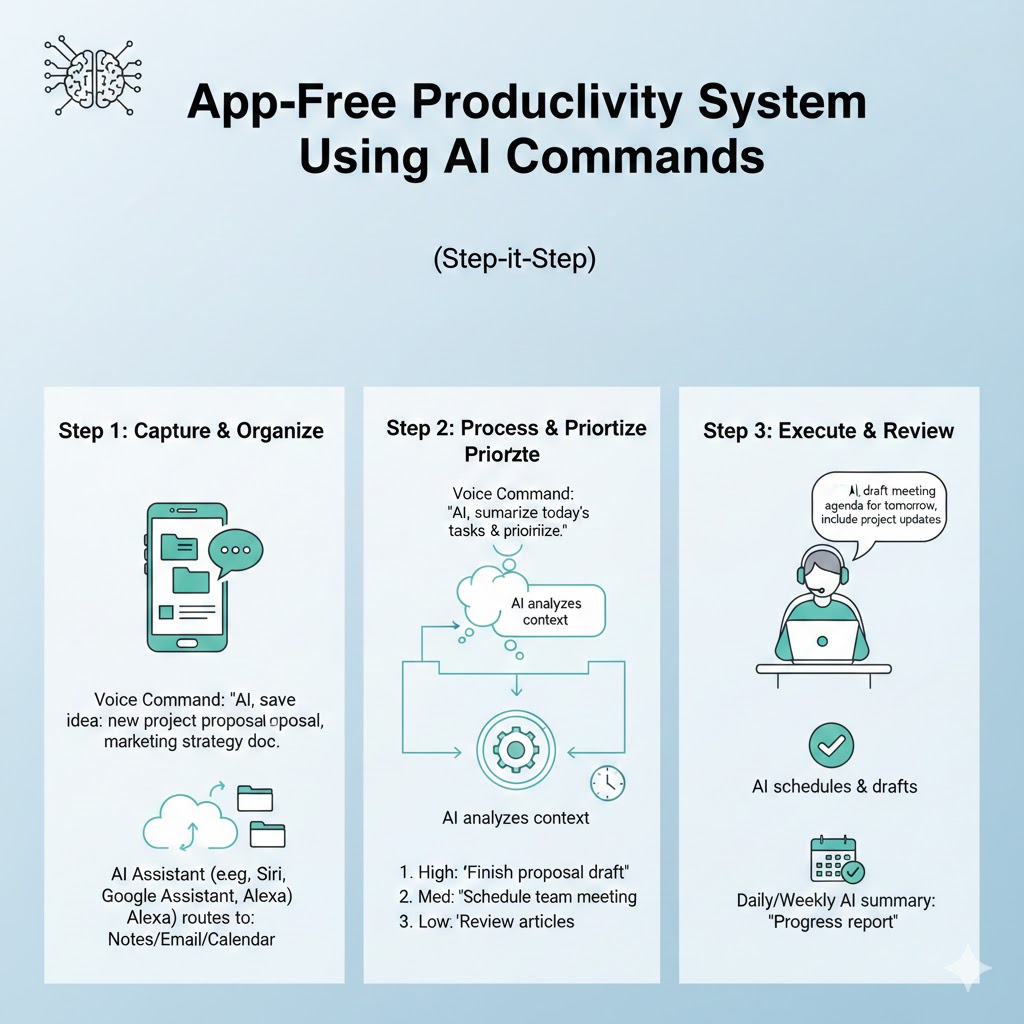
Build an App-Free Productivity System Productivity apps have become productivity problems. You install Todoist for task management, Notion for notes, Trello for projects, Calendar apps for scheduling, and countless other tools promising to make you more efficient. Instead, you spend more time managing your productivity system than actually being productive.
The irony is painful: the tools meant to simplify your workflow become complex systems requiring maintenance, updates, subscriptions, and constant context-switching between platforms. There’s a better way. By learning to build an app-free productivity system powered by AI commands, you can eliminate the bloat, reduce friction, and create a streamlined workflow that actually enhances rather than hinders your productivity.
This comprehensive guide will walk you through creating a complete productivity system using nothing but AI assistants and simple text-based commands. No installations, no subscriptions, no complicated interfaces—just powerful, flexible productivity that adapts to your needs.
1. Why Traditional Productivity Apps Fail Most People
The Feature Bloat Problem
Modern productivity apps suffer from feature creep. They start simple but evolve into complex platforms trying to be everything to everyone.
Common Feature Overload Issues:
- Interfaces cluttered with options you’ll never use
- Steep learning curves requiring hours of tutorials
- Regular updates that change familiar workflows
- Performance issues from unnecessary functionality
- Cognitive overhead from decision fatigue about features
The Subscription Fatigue Reality
Productivity tools have shifted to subscription models, creating ongoing financial and mental burdens.
Subscription Challenges:
- Multiple monthly payments adding up to hundreds annually
- Fear of losing data if you stop paying
- Forced upgrades and feature changes
- Lock-in effects making switching difficult
- Budget constraints limiting tool access
The Context-Switching Tax
Every time you switch between apps, you lose momentum and mental energy.
Switching Costs:
- Average of 23 minutes to regain focus after interruption
- Mental energy spent remembering which app holds what information
- Time wasted navigating between different interfaces
- Inconsistent workflows across different platforms
- Integration failures between tools
2. Understanding AI-Powered Productivity
How AI Replaces Multiple Productivity Apps
Modern AI assistants like ChatGPT, Claude, and Gemini can handle virtually every productivity function traditionally requiring separate apps when you build an app-free productivity system.
AI Capabilities Replacing Apps:
- Task management and prioritization
- Calendar planning and scheduling
- Note-taking and knowledge management
- Project planning and tracking
- Email drafting and communication
- Document creation and formatting
- Data analysis and reporting
- Research and information synthesis
The Command-Based Workflow Advantage
Instead of clicking through menus and interfaces, command-based productivity uses natural language to accomplish tasks instantly.
Command Workflow Benefits:
- Express intentions in natural language
- No need to remember specific interface locations
- Faster execution than navigating visual interfaces
- Flexibility to combine multiple functions in single commands
- Adaptability to changing needs without relearning systems
The Simplicity of Text-First Systems
Plain text is the most durable, portable, and flexible format for productivity information.
Text-Based Advantages:
- Works across any device or platform
- Future-proof and format-agnostic
- Searchable with basic tools
- Easy to backup and version control
- No proprietary lock-in or compatibility issues
3. Essential Components of an App-Free Productivity System
AI Assistant Selection and Setup
Choose AI assistants that align with your productivity needs and workflow preferences.
Primary AI Options:
- ChatGPT for conversational task management and brainstorming
- Claude for detailed project planning and document creation
- Gemini for research integration and multi-modal tasks
- Perplexity for research-heavy productivity needs
- Microsoft Copilot for Microsoft 365 integration
Setup Considerations:
- Access methods across devices
- Response speed and reliability
- Context retention capabilities
- File handling and export options
- Cost vs. feature trade-offs
Command Template Library
Build a library of reusable commands that handle common productivity tasks efficiently when you build an app-free productivity system.
Core Command Categories:
- Daily planning and task organization
- Meeting preparation and follow-up
- Project milestone tracking
- Communication drafting and refinement
- Research and information gathering
- Decision-making frameworks
- Time blocking and schedule optimization
- Review and reflection prompts
Simple Storage System
You need minimal infrastructure for storing AI-generated outputs and maintaining continuity.
Storage Options:
- Simple text files in cloud storage
- Email to yourself for searchable archives
- Note-taking apps as passive storage only
- Document folders organized by date or project
- Markdown files for structured information
4. Building Your Task Management System
Daily Task Planning Commands
Replace task management apps with AI-powered daily planning conversations.
Morning Planning Command:
“Review my priorities for today. I have meetings at 10am and 2pm. My top goals this week are finishing the marketing report and planning the product launch. I have 4 hours of focused work time available. Create an optimized schedule with specific tasks and time blocks.”
Task Capture Command:
“Add these tasks to my running list: call vendor about pricing, review budget spreadsheet, send follow-up email to John, research competitor features. Categorize by urgency and estimated time required.”
Priority Assessment Command:
“Here are my current tasks. Which three should I focus on today based on impact and deadlines? Explain your reasoning and suggest which to defer or delegate.”
Project Tracking Without Project Apps
Manage complex projects through structured AI conversations rather than complicated project management software.
Project Initiation Command:
“Help me plan a project for launching our new website. Timeline is 8 weeks. Key deliverables are design, content, development, and marketing. Create a phase breakdown with milestones, dependencies, and suggested task assignments.”
Progress Update Command:
“Here’s where we are on the website project: design is complete, content is 60% done, development starts next week. What should I focus on this week? What risks should I monitor? Update the project status summary.”
Blocker Resolution Command:
“We’re stuck on the website project because the developer needs design assets but the designer is waiting for content direction. Analyze this dependency chain and suggest solutions with pros and cons of each approach.”
Review and Reflection Systems
Build accountability and continuous improvement through regular AI-assisted reviews.
Weekly Review Command:
“Conduct my weekly review. Here’s what I completed this week, what I didn’t finish, and challenges I faced. Analyze patterns, suggest improvements, and help me plan next week’s priorities. Include both professional and personal goals.”
Monthly Retrospective Command:
“Review my productivity over the past month. Key accomplishments were X, Y, Z. Main challenges were A, B, C. Help me identify what’s working, what’s not, and recommend three specific changes to my system or habits.”
5. Creating Your Calendar and Time Management System
Schedule Optimization Commands
Let AI handle the complexity of optimal time allocation when you build an app-free productivity system.
Time Blocking Command:
“I have these commitments this week: Monday 9-11 team meeting, Wednesday 2-4 client call, Friday all-day workshop. I need to complete these tasks: 5-hour report writing, 2-hour budget review, 1-hour vendor calls, 3 hours of email. Create an optimized weekly schedule with buffer time and breaks.”
Meeting Preparation Command:
“I have a strategy meeting tomorrow at 2pm about Q4 planning. Attendees are the executive team. Create an agenda, talking points for my update, questions I should ask, and potential objections I should prepare for.”
Calendar Conflict Resolution:
“I have overlapping commitments: client presentation Tuesday at 3pm and team workshop Tuesday 2-5pm. Both are important. Analyze the situation, suggest solutions, and draft communication to reschedule whichever makes more sense to move.”
Energy Management and Focus Time
Optimize your schedule around your natural energy patterns and focus requirements.
Energy-Based Scheduling Command:
“I’m most focused in the morning, hit a slump after lunch, and rebound around 4pm. I have creative work requiring deep focus, administrative tasks, and meetings. Structure my ideal day based on my energy levels.”
Focus Session Planning:
“I need to write a 10-page proposal requiring deep focus. Break this into focused work sessions with optimal duration, break frequency, and environmental setup suggestions. Include strategies to maintain focus and handle interruptions.”
6. Building Your Communication System
Email Management Commands
Handle email efficiently without dedicated email management apps or plugins.
Email Drafting Command:
“Draft a professional email to a client explaining that our project will be delayed by two weeks due to vendor issues. Tone should be apologetic but confident. Include specific next steps and revised timeline. Keep it under 150 words.”
Email Prioritization Command:
“Here are summaries of 15 emails I received today. Which 5 should I respond to first? Categorize the rest as can wait, can delegate, or can ignore. Explain your prioritization logic.”
Email Template Creation:
“Create three templates I can reuse: declining meeting invitations politely, following up on pending decisions, and requesting feedback on proposals. Each should have customizable sections and maintain professional tone.”
Meeting Communication
Transform how you handle meetings through AI-assisted preparation and follow-up.
Meeting Notes Command:
“Here are my raw notes from today’s strategy meeting. Transform these into structured meeting minutes with decisions made, action items assigned, open questions, and next steps. Format for easy sharing with attendees.”
Follow-Up Communication:
“Based on this meeting summary, draft individual follow-up messages to each attendee highlighting their specific action items and deadlines. Tone should be friendly but clear about expectations.”
Communication Refinement
Polish your messages for clarity, tone, and impact when you build an app-free productivity system.
Message Improvement Command:
“Review this message I drafted. Is the tone appropriate? Is it clear and concise? Are there any potential misunderstandings? Suggest improvements and provide an optimized version.”
Difficult Conversation Prep:
“I need to have a difficult conversation about missed deadlines with a team member. Help me structure the conversation: opening, specific examples, impact discussion, solution exploration, and closing. Keep it constructive and professional.”
7. Creating Your Knowledge Management System
Research and Information Gathering
Replace research apps and bookmark managers with AI-powered information synthesis.
Research Command:
“Research the current state of remote work trends. Focus on productivity metrics, employee satisfaction, and cost implications for companies. Synthesize findings into key insights with supporting data and source citations.”
Competitive Analysis Command:
“Compare our product features with three main competitors: Company A, Company B, and Company C. Create a comparison matrix showing strengths, weaknesses, and gaps. Highlight our unique advantages and areas needing improvement.”
Note-Taking and Knowledge Capture
Create a flexible, searchable knowledge system without complicated note-taking apps.
Meeting Notes Processing:
“Here are raw notes from an important client meeting. Extract key insights, action items, and strategic implications. Organize into a structured summary I can reference later and share with the team.”
Learning Documentation Command:
“I just completed a course on data analysis. Help me create a practical reference guide with key concepts, techniques I should remember, common pitfalls, and action steps for applying this knowledge to my work.”
Information Synthesis
Transform scattered information into actionable insights and decisions.
Decision-Making Command:
“I’m deciding between hiring a full-time designer or using freelancers. Here are the factors I’m considering: cost, flexibility, quality, speed, integration with team. Analyze options systematically, present pros and cons, and recommend an approach with justification.”
Insight Extraction Command:
“Here are notes from five customer interviews. Extract common themes, pain points mentioned by multiple customers, unexpected insights, and recommendations for product improvements. Prioritize findings by potential impact.”
8. Advanced Productivity Workflows
Batch Processing Commands
Handle similar tasks efficiently through intelligent batching when you build an app-free productivity system.
Content Creation Batch:
“I need to create five social media posts about our new feature launch. Provide five different angles: customer benefit, technical innovation, problem solved, comparison to alternatives, and use case example. Each should be platform-optimized for LinkedIn.”
Decision Batch Processing:
“I have ten pending decisions to make about the conference: booth size, speaking slot preference, promotional materials, team attendance, budget allocation, sponsorship level, networking events, presentation topic, follow-up strategy, and pre-conference marketing. Help me work through these systematically.”
Template and System Creation
Build reusable frameworks that accelerate recurring productivity needs.
Custom Template Command:
“Create a template I can use weekly for planning my content creation. Should include: content ideas brainstorm, priority ranking, production timeline, distribution channels, success metrics, and follow-up tasks. Make it adaptable for different content types.”
Workflow Documentation:
“Document my client onboarding workflow so I can replicate it consistently. Include: initial outreach, discovery call agenda, proposal creation, contract negotiation, kickoff meeting structure, and first deliverable timeline. Format as a step-by-step checklist.”
Automation Through Smart Commands
Create productivity automation without technical automation tools.
Recurring Task Management:
“Set up my standard Monday morning routine as a command I can run each week: review calendar, identify top three priorities, check project statuses, flag any blockers, draft priority communication, and create time blocks for deep work.”
Status Reporting Command:
“Generate my weekly status report. Check my task completions, meeting outcomes, and project progress. Format as an executive summary with accomplishments, challenges, next week’s focus, and support needed. Keep it concise and focused on outcomes.”
9. Maintaining Your App-Free System
Daily Maintenance Rituals
Keep your system functioning smoothly through simple daily practices.
Morning Startup Sequence:
- Open AI assistant and review yesterday’s outputs
- Run daily planning command
- Check for follow-ups needed from previous conversations
- Prepare any templates or frameworks needed for the day
- Set intentions and focus areas
Evening Shutdown Routine:
- Document incomplete tasks and carry-forward items
- Save important AI conversations to your storage system
- Reflect on what worked and what didn’t
- Prepare tomorrow’s priority command
- Clear mental loops with brain dump to AI
Continuous Improvement
Refine your commands and workflows based on what actually works.
System Review Command:
“Review my productivity system usage over the past two weeks. Which commands am I using most? Which aren’t working? What friction points remain? Suggest three specific improvements to my command library and workflow.”
Command Optimization:
- Note which commands produce best results
- Refine wording for clearer AI understanding
- Create shortcuts for frequently used command patterns
- Build command chains for complex workflows
- Document successful variations for future use
Backup and Continuity
Protect your productivity system from data loss or access issues.
Backup Strategies:
- Email yourself summaries of important AI conversations
- Save critical outputs to cloud storage weekly
- Maintain command library in a simple text file
- Export key information to portable formats
- Keep offline copies of essential frameworks
10. Troubleshooting and Common Challenges
When AI Responses Don’t Meet Expectations
Even the best systems require adjustment and refinement.
Improvement Strategies:
- Provide more context in your commands
- Break complex requests into smaller steps
- Give examples of desired outputs
- Iterate on responses with follow-up refinements
- Experiment with different AI assistants for different tasks
Managing Information Overload
AI can generate so much information that you create new overwhelm.
Overload Prevention:
- Request specific, actionable outputs rather than comprehensive analyses
- Set word count limits in your commands
- Ask for prioritized information with top items first
- Use summary commands to distill lengthy outputs
- Focus on decisions and actions, not just information
Maintaining Consistency Across Conversations
AI lacks perfect memory across sessions, requiring strategies for continuity.
Continuity Techniques:
- Begin important sessions with context-setting
- Reference previous conversation outputs when relevant
- Maintain personal system documentation
- Use consistent terminology in your commands
- Create command templates that include necessary context
Conclusion
The ability to build an app-free productivity system using AI commands represents a fundamental shift in how we approach personal effectiveness. You don’t need dozens of specialized apps, complex integration setups, or mounting subscription costs. You need clear thinking, good commands, and AI assistants that understand natural language.
This approach isn’t about rejecting technology—it’s about using technology more intelligently. Instead of learning the peculiarities of various app interfaces, you develop a command vocabulary that works across any AI assistant. Instead of managing multiple systems, you maintain a single, flexible workflow that adapts to your changing needs.
The app-free productivity system offers something traditional tools never can: true flexibility. When your needs change, you don’t need to find a new app, migrate your data, and learn a new interface. You simply adjust your commands and continue working.
Start small. Choose three to five commands from this guide that address your biggest productivity pain points. Use them consistently for two weeks. Refine based on results. Gradually expand your command library as you discover what works for your specific situation.
Also read this:
Convert Old Content Into Fresh Posts Automatically Using AI
How to Detect Platform Algorithm Changes Before Official Announcements
How to Turn Live Streams Into Short-Form Clips Without Manual Editing