
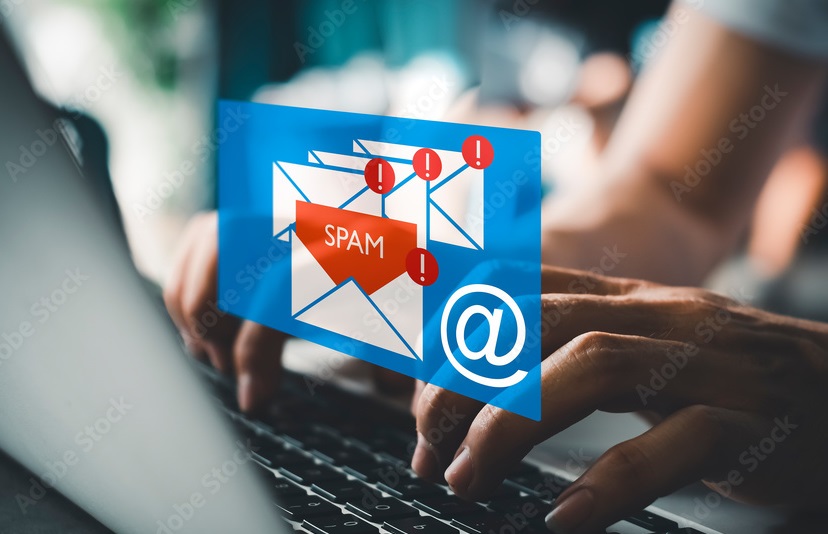
Delve into the intricate realm of email spam, where we unravel its diverse types and equip you with effective tactics to combat its onslaught. From understanding the nuances of spam to implementing measures to stop, block, and report malicious emails, this comprehensive guide empowers you to safeguard your inbox against unwanted intrusion and potential threats.
What is Spam Email ?
Email spam refers to the unsolicited barrage of bulk emails inundating recipients’ inboxes, typically with commercial or malicious intent. These messages are often sent en masse to large numbers of email addresses, acquired through various means like harvesting from websites, purchasing lists, or employing dictionary attacks. They are characterized by their unwelcome nature, arriving without prior consent or request from the recipient. Email spam may promote products, services, or websites, or it may harbor phishing attempts, scams, malware, or other harmful content.
To evade detection and entice recipients, spammers employ deceptive tactics such as misleading subject lines, spoofed sender addresses, or disguised links. This incessant influx of unwanted emails poses a nuisance to recipients, clogging up their inboxes and potentially exposing them to security risks. As a response, email providers implement stringent measures like spam filters, blacklists, and sender authentication protocols to thwart spam. Additionally, users can take proactive steps like marking spam emails, setting up filters, and safeguarding their email addresses to mitigate the impact of spam.
Types of Spam Emails
Spam emails come in various forms, each with its own objective and method of delivery. Here are some common types of spam emails:
- Phishing emails: Attempt to trick recipients into revealing sensitive information like passwords or financial details.
- Scam emails: Deceive recipients with fraudulent promises of rewards, prizes, or opportunities.
- Advertisement or promotional emails: Promote products, services, or websites from unknown or untrustworthy sources.
- Malware-laden emails: Contain malicious attachments or links that install malware on the recipient’s device.
- Pharming emails: Redirect recipients to fake websites to steal login credentials or install malware.
- Chain letters or hoaxes: Encourage recipients to forward them with promises of good luck or dire consequences.
- Stock or investment scams: Promote dubious stocks or investment opportunities with promises of high returns.
- Dating or romance scams: Establish fake romantic relationships to extort money or personal information.
How to Identify Spam Emails ?
Identifying spam emails involves being vigilant and aware of common characteristics and red flags. Here are several indicators that can help you recognize spam emails:
- Unknown Sender: Be wary of emails from unfamiliar or suspicious senders.
- Unsolicited Emails: Exercise caution with emails you didn’t subscribe to or request.
- Poor Grammar/Spelling: Watch for numerous spelling or grammatical errors, indicative of phishing attempts.
- Urgent/Threatening Language: Be cautious of emails pressuring immediate action with threats or urgent requests.
- Requests for Personal Information: Avoid emails asking for sensitive data like passwords or financial details.
- Suspicious Attachments/Links: Avoid opening attachments or clicking on links from unknown sources.
- Mismatched URLs: Hover over links to preview URLs; beware of mismatches or suspicious URLs.
- Spoofed Sender Addresses: Verify sender addresses for subtle differences indicating spoofing.
- Too Good to Be True Offers: Be skeptical of emails promising unbelievable deals or prizes.
- Unsolicited Attachments/Downloads: Exercise caution with unexpected attachments, which may contain malware.
How to Stop Getting Spam Emails ?
Stopping spam emails can be a bit of a cat-and-mouse game, but there are several steps you can take to reduce the amount of spam you receive:
- Use a spam filter: Most email providers offer built-in spam filters that automatically detect and move spam emails to a separate folder. Make sure your spam filter is enabled and adjust its settings to your preferences.
- Be cautious with your email address: Avoid posting your email address on public forums, social media, or other online platforms where it can be harvested by spammers. Instead, use a separate email address for online registrations and subscriptions.
- Unsubscribe: If you receive spam from a legitimate company, use the unsubscribe link usually found at the bottom of the email. However, be cautious with this approach, as clicking on unsubscribe links in suspicious emails can sometimes confirm to spammers that your email address is active.
- Don’t reply to spam: Responding to spam emails or clicking on links within them can confirm to spammers that your email address is active and may result in more spam.
- Use disposable email addresses: Consider using disposable email addresses for one-time registrations or subscriptions. This way, if the address starts receiving spam, you can simply stop using it.
- Install anti-spam software: In addition to your email provider’s spam filter, you can also install third-party anti-spam software on your computer or mobile device for an added layer of protection.
- Report spam: Most email providers have a mechanism for reporting spam. By reporting spam emails, you can help improve the effectiveness of the spam filter for yourself and others.
- Regularly clean your email lists: If you maintain email lists for newsletters or other communications, regularly clean them by removing inactive or invalid email addresses. This can help prevent your emails from being flagged as spam by recipients’ filters.
How to Block Spam Emails ?
Blocking spam emails is another effective way to prevent them from reaching your inbox. Here’s how you can block spam emails using common email providers:
Gmail:
- Open the email: Locate the spam email you want to block.
- Click on the three dots: Next to the sender’s name or email address, you’ll see three dots. Click on them.
- Select “Block [sender]”: A menu will appear. Choose “Block [sender]” to block emails from that sender.
- Confirm the action: If prompted, confirm that you want to block the sender.
Outlook/Hotmail:
- Open the email: Find the spam email you want to block.
- Click on “Junk”: In the toolbar above the email, click on “Junk.”
- Select “Block [sender]”: From the dropdown menu, choose “Block [sender]” to block emails from that sender.
- Confirm the action: If prompted, confirm that you want to block the sender.
Yahoo Mail:
- Open the email: Locate the spam email you want to block.
- Click on “More”: Next to the sender’s name or email address, click on “More” (represented by three dots).
- Select “Block [sender]”: Choose “Block [sender]” from the dropdown menu.
- Confirm the action: If prompted, confirm that you want to block the sender.
Apple Mail (Mac):
- Open the email: Find the spam email you want to block.
- Click on “Junk”: In the toolbar above the email, click on “Junk” to reveal a dropdown menu.
- Select “Block Sender”: Choose “Block Sender” from the dropdown menu to block emails from that sender.
Blocking spam emails helps prevent future emails from the same sender from reaching your inbox. However, keep in mind that spammers may use different email addresses or tactics to bypass these blocks. Regularly review your spam folder and update your blocking settings as needed.
How to Report Spam Emails ?
Reporting spam emails typically involves a few steps, depending on your email provider or client. Here’s a general guide on how to report spam emails:
- Identify the spam email: Open the email you believe to be spam.
- Find the “Report” or “Spam” button: Most email providers have a button or link specifically for reporting spam. Look for options like “Report spam,” “Mark as spam,” or a similar label. This button is often located near the top of the email interface, next to other options like “Reply,” “Forward,” or “Delete.”
- Click on the “Report” or “Spam” button: Once you’ve located the appropriate button, click on it to mark the email as spam.
- Confirm the action (if prompted): Some email providers may ask for confirmation before marking an email as spam. If prompted, confirm that you want to report the email as spam.
- Check your spam folder: After reporting the email as spam, it may be automatically moved to your spam or junk folder. You can review the folder to ensure that the email has been successfully marked as spam.
- Consider additional steps: Depending on your email provider, you may have the option to take further action against spam emails, such as blocking the sender or setting up filters to automatically divert similar emails to your spam folder.
It’s important to note that reporting spam emails helps improve the effectiveness of your email provider’s spam filter, as well as the overall spam detection system. By reporting spam, you contribute to a safer and more secure email environment for yourself and other users.
Also Read :
- Beware: 15 WhatsApp Scams to Know About in 2024
- 12 Ways to Protect Yourself from Identity Theft (Experts Advice)
- 15 Instagram Scams You Can’t Afford to Ignore in 2024
- 20 Job Scams to Avoid in 2024 and How to Identify Them?
- 15 Phone Scams with Identifying and Reporting Strategies 2024
FAQ’s
Why do I receive spam emails?
Spam emails are sent by spammers who obtain email addresses through various means, such as harvesting from websites, purchasing lists, or using automated software to generate addresses.
Are all spam emails dangerous?
While not all spam emails are dangerous, they can still be annoying and clutter your inbox. Some spam emails may contain phishing attempts, scams, malware, or other malicious content that can pose security risks.
How do spammers get my email address?
Spammers obtain email addresses through various means, including harvesting from websites, purchasing lists, using automated software to generate addresses, and exploiting security vulnerabilities.
What should I do if I accidentally opened a spam email?
If you accidentally open a spam email, avoid clicking on any links or downloading any attachments within the email. You can simply close the email and delete it from your inbox.
How can I protect myself from phishing scams?
To protect yourself from phishing scams, be cautious of emails requesting personal information, verify the sender’s email address, avoid clicking on suspicious links or attachments, and regularly update your email security settings.
Is it safe to unsubscribe from spam emails?
It is generally not recommended to unsubscribe from spam emails, as doing so can confirm to spammers that your email address is active, leading to more spam. Instead, mark the email as spam and delete it from your inbox.