
A professional resume remains one of the most important tools in a successful job search. Whether you’re a recent graduate applying for your first role, a mid-career professional seeking advancement, or an executive pursuing leadership opportunities, your resume often creates the first impression recruiters have of you.
Today, many job seekers turn to Canva because it offers beautifully designed templates that make resume creation faster and easier. However, simply choosing an attractive design is not enough. A resume must also be readable, professional, and compatible with Applicant Tracking Systems (ATS) that many employers use to screen candidates.
This comprehensive guide will show you how to choose the best resume template Canva designs, customize them effectively, maintain ATS compatibility, and create a resume that stands out to both recruiters and hiring software.
What Is a Resume Template Canva?
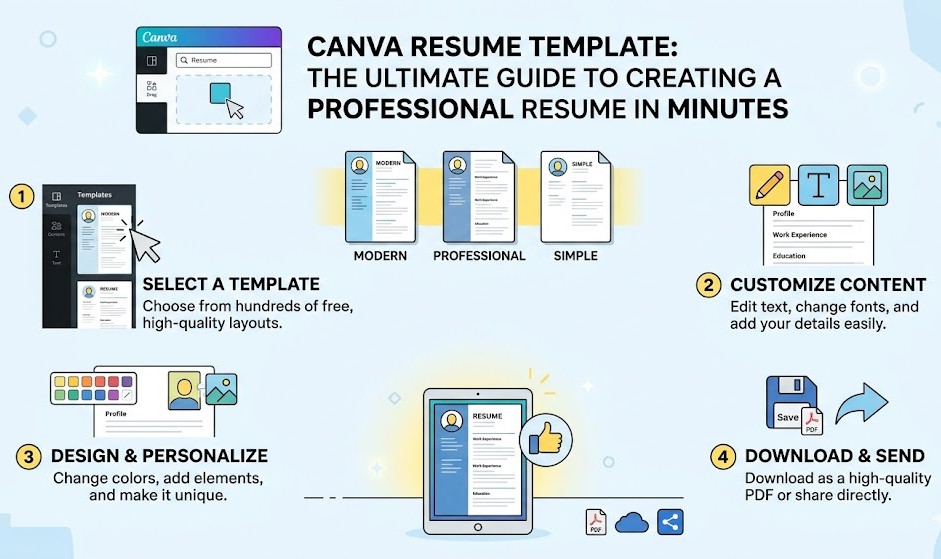
A Canva resume template is a professionally designed resume layout that users can customize to create polished job application documents without requiring graphic design experience.
Instead of building a resume from scratch, users can select from thousands of editable templates and replace placeholder information with their own work history, education, skills, and achievements.
For example, a marketing professional can choose a modern design, update their accomplishments, adjust the layout, and create a polished resume within minutes.
One of Canva’s biggest advantages is its intuitive drag-and-drop editor. Users can easily modify:
- Fonts
- Colors
- Layouts
- Icons
- Spacing
- Section placement
This flexibility allows beginners and experienced professionals alike to create visually appealing resumes quickly.
Free vs Premium Canva Resume Templates
Canva offers both free and premium resume templates.
A free Canva template provides access to many professional layouts and basic editing tools, while Canva Pro unlocks additional customization options, premium fonts, graphics, and advanced design features.
| Feature | Free Canva Templates | Premium Canva Templates |
|---|---|---|
| Resume Designs | Large Selection | Full Library Access |
| Customization | Basic | Advanced |
| Premium Fonts | No | Yes |
| Premium Graphics | Limited | Full Access |
| Background Removal | No | Yes |
| Brand Kit Features | No | Yes |
Furthermore, Canva reported more than 220 million monthly active users globally, demonstrating its widespread adoption for design projects.
Source: Canva, 2025.
Why Are Resume Template Canva So Popular?
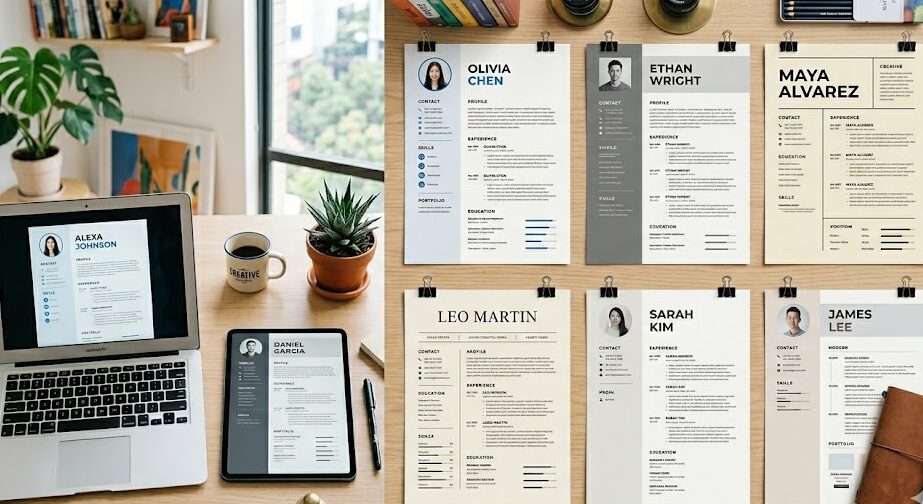
The popularity of resume template Canva designs comes from their ability to combine professional design, ease of use, and affordability.
Job seekers no longer need expensive software or graphic design expertise to create a polished resume.
Research suggests recruiters often spend only a few seconds reviewing a resume during an initial screening process.
Source: Ladders, 2024.
Because first impressions happen quickly, presentation matters.
Professional Appearance
A well-designed resume instantly appears more polished and credible.
Professional Canva templates help organize information clearly through:
- Balanced spacing
- Consistent typography
- Clear section headings
- Visual hierarchy
These elements improve readability and help recruiters find important information quickly.
Significant Time Savings
Creating a resume from scratch can take hours.
Canva simplifies the process by providing ready-made structures that users can customize in minutes rather than designing layouts manually.
Accessible for Non-Designers
Students, career changers, and professionals with no design experience can still create attractive resumes using Canva’s beginner-friendly editor.
Better First Impressions
Clean and modern layouts can positively influence recruiter perception.
Professional and minimalist resume templates generally provide the best balance between visual appeal and recruiter readability.
How to Choose the Right Resume Template Canva
Selecting the right resume template Canva design involves more than choosing one that looks attractive. The template should match your industry, experience level, and target role.
Consider Your Industry
Different industries have different expectations regarding resume design.
Finance and Accounting
Choose:
- Minimalist designs
- Professional layouts
- Neutral colors
- Traditional formatting
Marketing and Sales
Choose:
- Modern templates
- Strategic visual elements
- Contemporary layouts
Graphic Design and Creative Fields
Choose:
- Creative templates
- Portfolio-style layouts
- Strong visual branding
Executive Positions
Choose:
- Sophisticated layouts
- Leadership-focused formatting
- Professional design elements
Technology Roles
Choose:
- ATS-friendly templates
- Clean structures
- Readability-focused layouts
Consider Your Experience Level
Your career stage should influence template selection.
Students and Recent Graduates
Focus on:
- Education
- Projects
- Certifications
- Internships
Mid-Level Professionals
Highlight:
- Career progression
- Achievements
- Technical skills
- Measurable results
Executives
Emphasize:
- Leadership accomplishments
- Strategic impact
- Revenue growth
- Organizational transformation
Prioritize ATS Compatibility
Applicant Tracking Systems scan resumes before human recruiters often see them.
According to Jobscan research, over 98% of Fortune 500 companies use ATS software during recruitment.
Source: Jobscan, 2025.
This makes ATS compatibility a critical factor when choosing a template.
How to Create a Professional Resume Using Canva
Creating a resume in Canva is straightforward when following a structured process.
Step 1: Create a Canva Account
Sign up for a free Canva account or log into your existing profile.
Step 2: Search for Resume Templates
Use keywords such as:
- Professional resume template Canva
- Modern resume template Canva
- ATS friendly resume template
- Minimalist resume template
Step 3: Customize Your Resume Content
Replace all placeholder content with your own information.
Include:
- Contact details
- Professional summary
- Work experience
- Education
- Skills
- Certifications
Step 4: Optimize Design Elements
Keep the design clean and readable.
Best practices include:
- Professional fonts
- Consistent spacing
- Clear section headings
- Limited color palettes
- Logical organization
Step 5: Export Your Resume
Download your completed resume as a PDF unless the employer specifies another format.
PDF files generally preserve formatting and ensure consistent appearance across devices.
Are Resume Template Canva ATS Friendly?
Yes, many Canva resume templates can be ATS friendly when designed and formatted correctly.
ATS-friendly resumes prioritize:
- Readability
- Structured formatting
- Standard section headings
- Keyword optimization
ATS-Friendly Canva Resume Best Practices
Use:
- Standard section titles
- Simple fonts
- Single-column layouts
- Job-specific keywords
- PDF exports (when accepted)
Avoid:
- Excessive graphics
- Complex tables
- Decorative icons
- Text embedded inside images
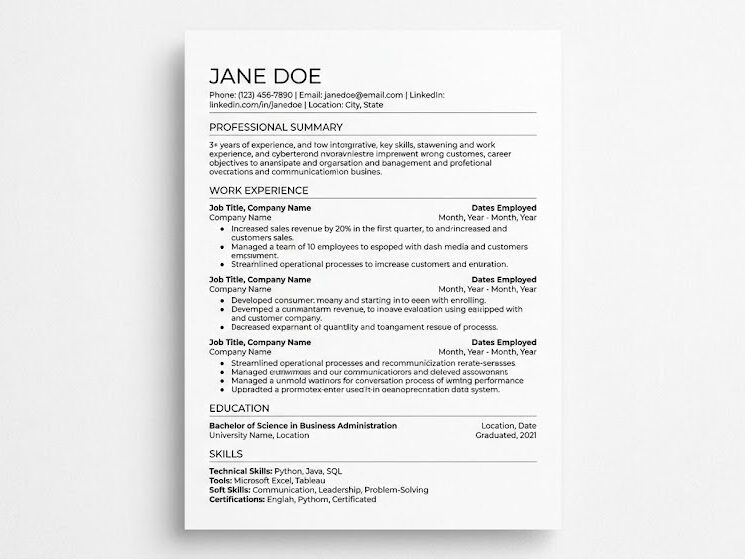
For most job applications, minimalist resume templates perform better in ATS systems than highly creative layouts.
Best Free Resume Template Canva
The best free Canva resume templates combine professionalism, readability, and flexibility.
Professional Resume Templates
Best for:
- Corporate jobs
- Finance
- Administration
- Operations
Modern Resume Templates
Best for:
- Marketing
- Sales
- Technology
- Startups
Minimalist Resume Templates
Best for:
- ATS optimization
- Traditional industries
- Experienced professionals
Resume Template Canva
Best for:
- Graphic designers
- Content creators
- Advertising professionals
Executive Resume Templates
Best for:
- Directors
- Vice Presidents
- Senior Managers
- C-suite executives
Student Resume Templates
Best for:
- Internships
- Entry-level jobs
- Recent graduates
What Information Should You Include in a Resume Template Canva?
A strong resume template Canva design should contain all the information recruiters need to assess your qualifications quickly.
Essential Resume Sections
Include:
- Contact Information
- Professional Summary
- Work Experience
- Education
- Technical Skills
- Certifications
- Projects
- Awards and Achievements (when relevant)
LinkedIn reports that skills-focused resumes continue gaining importance as employers increasingly prioritize demonstrated capabilities.
Source: LinkedIn Workforce Report, 2025.
Resume Content Optimization Tips
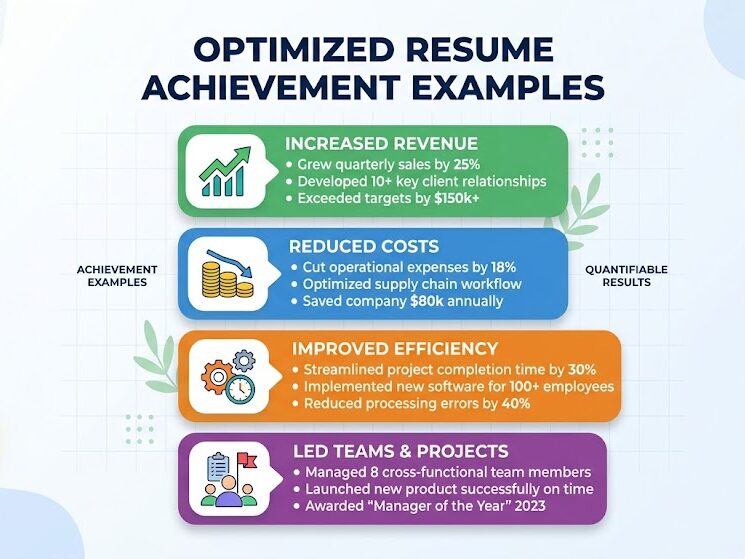
Quantify Achievements
Numbers make accomplishments more convincing.
Examples:
- Increased revenue by 25%.
- Reduced operational costs by 15%.
- Managed a team of 12 employees.
- Improved customer satisfaction by 30%.
Tailor Every Application
Customize your resume for each job posting.
Match relevant:
- Skills
- Keywords
- Qualifications
- Achievements
Tailored resumes often perform better with both ATS software and recruiters.
Common Resume Template Canva Mistakes to Avoid
Even the best template can underperform if common mistakes are overlooked.
Overdesigning the Resume
Too many visual elements can distract from qualifications.
Focus on content first and design second.
Using Excessive Colors
Bright colors and inconsistent styling can appear unprofessional in many industries.
Neutral color palettes generally work best.
Poor Readability
Avoid:
- Small fonts
- Dense paragraphs
- Crowded layouts
Recruiters should be able to scan your resume quickly.
ATS Compatibility Problems
Complex formatting can confuse applicant tracking systems.
Avoid replacing important headings with icons or graphics.
Generic Resume Content
Generic statements weaken applications.
Instead of:
“Responsible for sales.”
Use:
“Increased quarterly sales by 22% through targeted client outreach strategies.”
Tools to Optimize Your Canva Resume
Several tools can improve resume performance and increase interview opportunities.
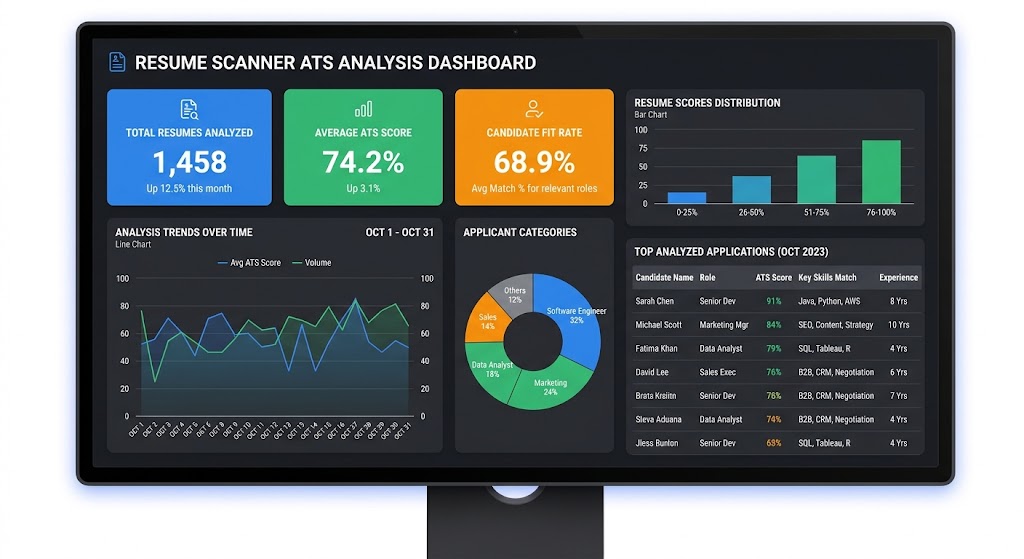
ATS Resume Scanners
Popular ATS scanners include:
- Jobscan
- Resume Worded
- SkillSyncer
These tools evaluate keyword relevance and ATS compatibility.
Grammar and Writing Tools
Improve professionalism with:
- Grammarly
- Hemingway Editor
- ProWritingAid
LinkedIn Optimization Tools
Aligning your resume and LinkedIn profile strengthens your professional brand and improves consistency.
Cover Letter Creation Tools
Canva also offers matching cover letter templates that create a cohesive application package.
What to Do After Completing Your Canva Resume
Creating your resume is only the first step in a successful job search.
Tailor Every Application
Customize keywords and accomplishments for each role.
Create a Matching Cover Letter
A strong cover letter can reinforce your qualifications.
Optimize Your LinkedIn Profile
Resume Template Canva Ensure your LinkedIn profile aligns with your resume.
Track Your Applications
Maintain a system for monitoring:
- Applications submitted
- Interview dates
- Follow-up actions
- Employer responses
Prepare for Interviews
Begin interview preparation immediately after applying.
Use Strategic Job Search Techniques
Networking and targeted applications often improve results.
Conclusion
A resume template Canva solution provides one of the easiest and most effective ways to create a professional resume without advanced design skills. Whether you’re a student, experienced professional, career changer, or executive, Canva offers templates that can help you present your qualifications clearly and professionally.
The key to success is balancing attractive design with ATS compatibility. Choose a template that aligns with your industry, customize it for every application, highlight measurable achievements, and use optimization tools to strengthen your resume’s performance.
Remember, recruiters ultimately hire based on qualifications and accomplishments—not design alone. A well-written resume paired with the right Canva template can significantly increase your chances of securing interviews and advancing your career.
For more career guidance, explore our resources on resume writing, ATS optimization, job search strategies, LinkedIn optimization, and interview preparation.
FAQs
Are Canva resume templates free to use?
Yes. Canva offers many free resume templates that provide professional designs and basic customization features. Canva Pro unlocks additional premium templates and advanced design tools.
Are Canva resumes ATS friendly?
Many Canva resumes can be ATS friendly when they use simple layouts, standard headings, readable fonts, and minimal graphics. Single-column designs typically perform best.
What is the best resume template Canva offers?
The best template depends on your industry and experience level. Professional and minimalist templates generally work well across most industries because they balance readability and ATS compatibility.
Should I download my Canva resume as PDF or Word?
PDF is usually the preferred format because it preserves formatting across devices. However, always follow the employer’s specific submission requirements.
How often should I update my resume?
You should update your resume whenever you gain new skills, certifications, accomplishments, promotions, or significant work experience. Regular updates ensure you’re prepared for new opportunities.
Can students use Canva resume templates?
Yes. Canva offers student-focused resume templates that emphasize education, internships, projects, certifications, and academic achievements, making them ideal for entry-level job seekers.